Contents
- Why display workouts on your gym TVs?
- Getting started
- Automatic Mode (Default)
- Mirror Mode
- Manual Mode
- Timer displays
- Choosing the right display mode
- Go further with Multi-track and Flexi Timers
Why display workouts on your gym TVs?
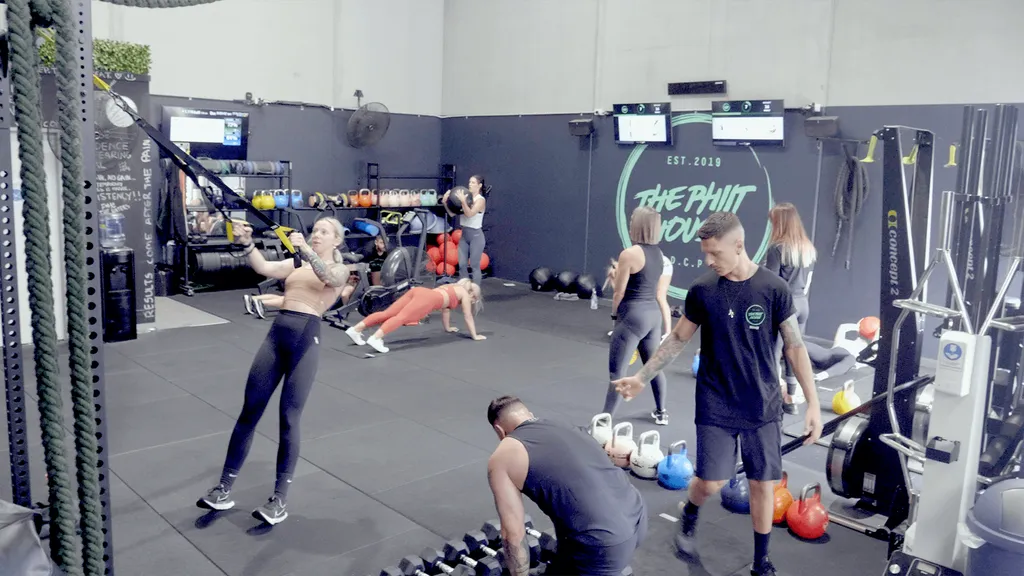
If you run group classes, circuits or coached sessions, you know the challenge: members constantly looking to the trainer for what exercise comes next, how long is left, or what weight to use. It slows sessions down, limits the number of people a single coach can manage, and makes it harder to run consistent classes across your team.
A workout display system solves this by putting exercises, timers and instructions directly on the screens your members are already looking at. Trainers spend less time repeating themselves and more time coaching. Members stay focused, sessions flow better, and you can scale quality across trainers and locations.
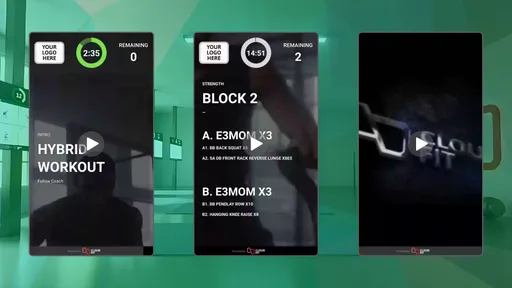
CloudFit turns your existing gym TVs into powerful workout displays with customisable timers, exercise video libraries, digital whiteboards and flexible multi-screen layouts. Here's how to get the most out of your screens.
Getting started
Before diving into display modes, you'll need your hardware and software set up. Each TV in your gym needs either an Apple TV or a Google TV Streamer connected to it. Once plugged in, pair each display to your account using the CloudFit mobile app. If you're not sure how, check out our help article on pairing your first displays.
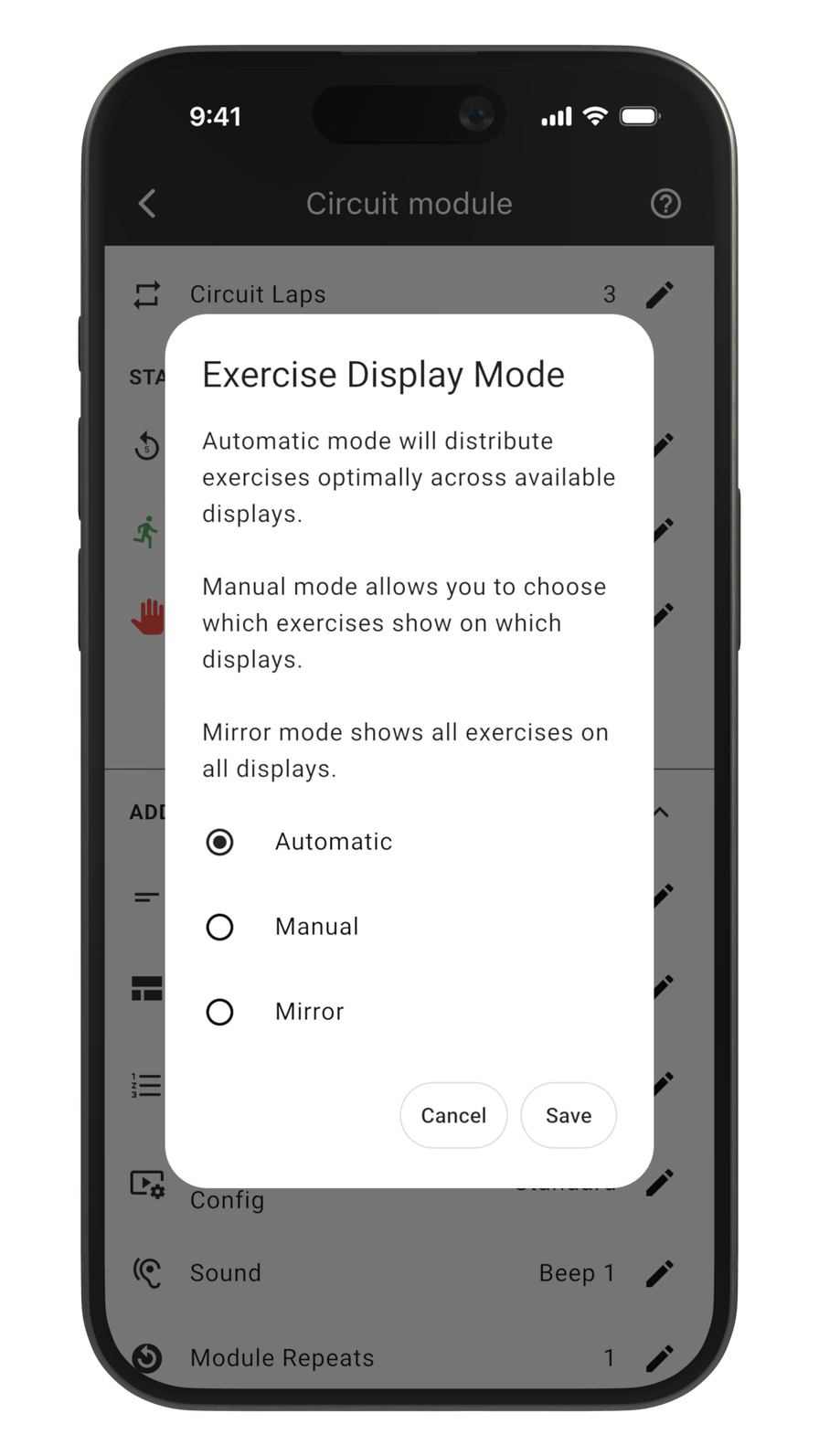
With your displays paired, you're ready to explore CloudFit's Display Modes. Display modes control how exercises are distributed across your connected screens. Each workout module can be set to a different mode, so you can tailor the layout for every session type.
Automatic Mode (Default)
Automatic Mode is the default for every new workout module. In this mode, CloudFit evenly distributes all exercises across your connected displays. If you have 8 exercises and 2 TVs, each screen shows 4 exercises. Add a third TV and the layout adjusts automatically.
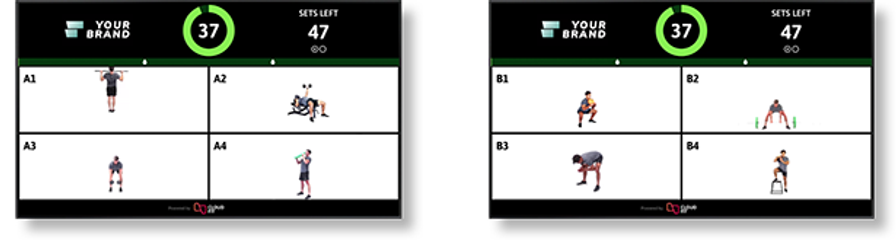
This is the best starting point while you get familiar with the platform, and for most gyms it's the mode you'll use most often.
When to use Automatic Mode
- Circuit training and group classes where members rotate between stations spread across the gym floor
- HIIT sessions with multiple exercise stations that need to be visible from different areas
- Any session with a large number of exercises where you want even coverage across screens without manual configuration
- New CloudFit users who want a zero-configuration setup that just works
Tips for Automatic Mode
- Position your TVs so each screen is visible from the stations it covers
- CloudFit rebalances exercises whenever you add or remove a display, so you can scale up without reconfiguring workouts
- Pair Automatic Mode with CloudFit's workout scheduling to publish your sessions in advance and have them ready to go
Mirror Mode - All Screens Show The Same Exercises
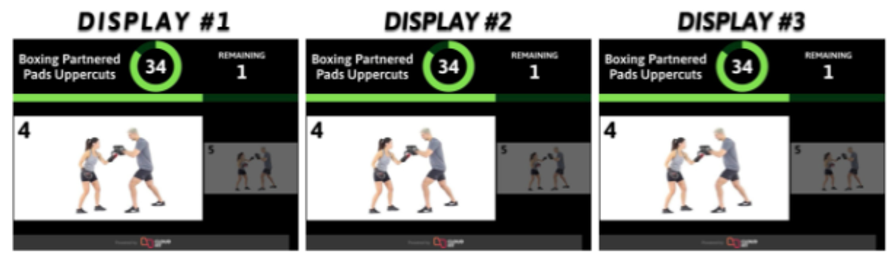
Mirror Mode displays identical content on every connected screen. Every TV shows the same exercises, the same timer and the same instructions simultaneously.
When to use Mirror Mode
- Yoga, Pilates and stretching classes where every member performs the same movement at the same time
- Instructor-led sessions where the trainer guides the group through a single sequence
- Time trials and AMRAPs where everyone works through the same set on the clock
- Large spaces where you need the same content repeated on multiple screens so members can see from anywhere
Tips for Mirror Mode
- Mirror Mode works particularly well for Pilates studios and boxing/martial arts gyms where the whole group follows one flow
- Combine with CloudFit's exercise video library to show demonstration videos alongside your timer and instructions
Manual Mode - Ultimate Flexibility and Control
Manual Mode gives you full control over which exercises appear on which screens. You assign specific exercises to specific displays by long-pressing on an exercise and dragging it to the desired screen.
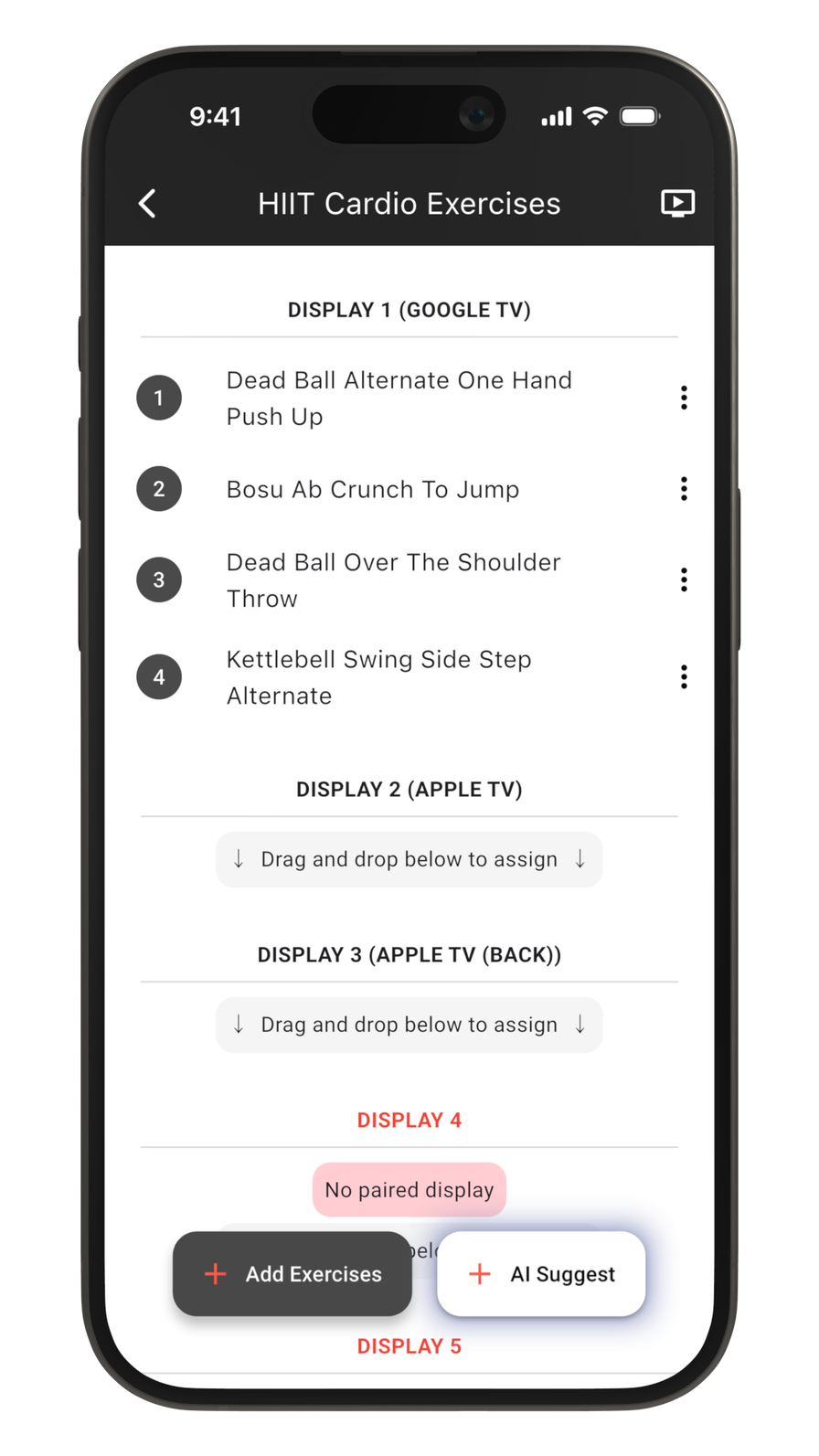
This mode is ideal when your gym layout doesn't suit an even split, or when you want certain screens to show specific content.
When to use Manual Mode
- Irregular screen placements where a smaller TV is next to the battle ropes and a larger one overlooks the main floor
- Dedicated station screens where you want one screen per station showing only that station's exercise
- Mixed session formats where different areas of the gym run different segments simultaneously
- Timer-only displays where you want one screen dedicated to showing just the countdown clock (see below)
Tips for Manual Mode
- You can put as many or as few exercises on each display as needed. One screen with 8 exercises and another with just 1 is perfectly valid
- Manual Mode pairs well with Multi-track workouts for advanced session designs
Timer displays
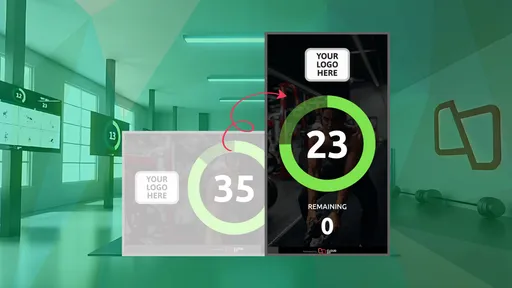
CloudFit's timer display is a configurable feature available in any display mode. You can set any individual screen to show a full-screen countdown timer instead of exercises. This is useful when you want a dedicated clock visible from across the gym floor while other screens show exercises.
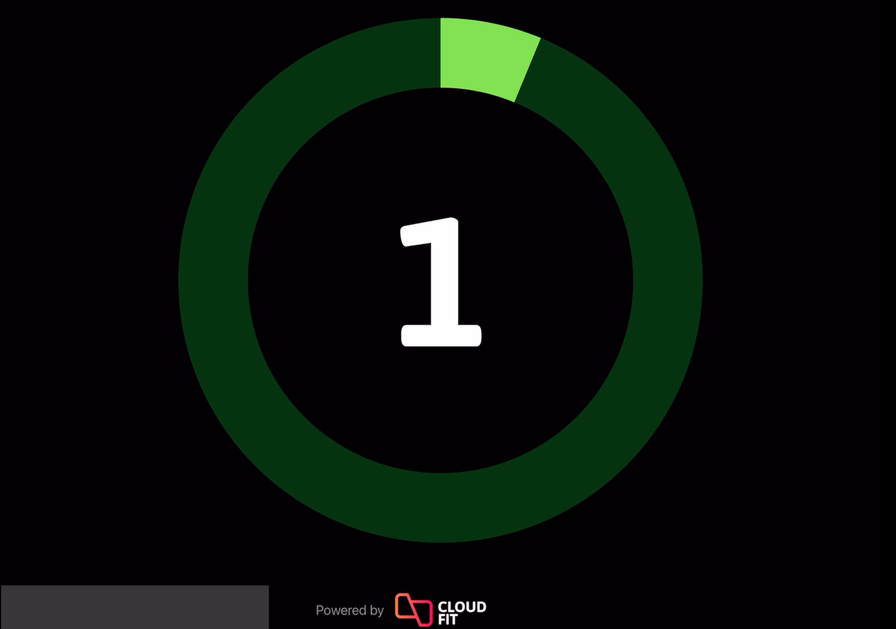
Timer displays keep your members on pace without trainers needing to shout countdowns. Combined with CloudFit's Flexi Timers, you can create custom timing patterns for work/rest intervals, EMOM rounds, Tabata and more.
Choosing the right display mode
Not sure which mode to pick? Here's a quick guide:
| Scenario | Recommended Mode |
|---|---|
| Circuit class with members rotating between stations | Automatic |
| Yoga, Pilates or instructor-led class | Mirror |
| HIIT with stations spread across the floor | Automatic |
| AMRAP or time trial with full group | Mirror |
| Stretching or cool-down with the whole class | Mirror |
| General group fitness class | Automatic |
For most gyms, Automatic and Mirror will cover everything you need. Manual Mode is there for specific layouts where you really want certain exercises on certain screens, but it's the exception rather than the rule.
You can set the display mode independently on each workout module, so there's no need to pick just one.
Go further with Multi-track workouts and Flexi Timers
Once you've mastered display modes, CloudFit offers advanced features to take your sessions further:
Multi-track workouts let you run multiple independent exercise tracks within a single session. Each track can have its own timing, exercises and display assignment, perfect for complex class formats where different groups work at different paces.
Flexi Timers give you granular control over timing at the exercise level. Set unique work/rest durations for individual exercises rather than applying a single timer across the board, ideal for sessions that mix heavy lifts with cardio bursts.
Together with display modes, these features give you the flexibility to design and deliver virtually any session format on screen.
Ready to transform your gym's screens into powerful workout displays? Talk to our team to learn how CloudFit can work for your space, or get started for free and try it yourself.