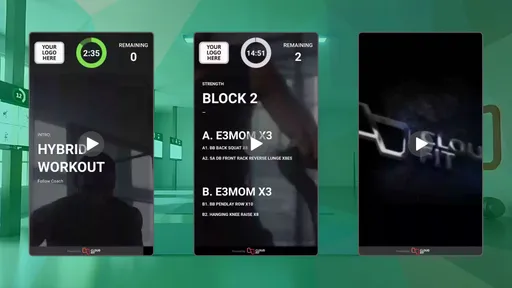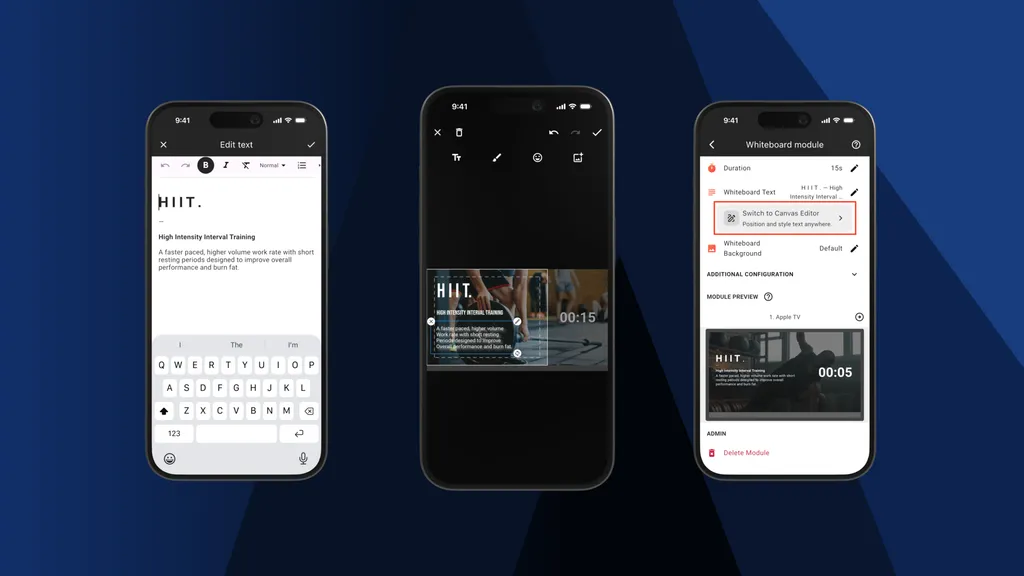
Whiteboard modules are one of the easiest ways to show workout notes, class instructions, announcements and extra context on your gym TVs.
Now, CloudFit gives you a more flexible way to design them.
We're excited to introduce the Whiteboard Canvas Editor, a new way to place, style and arrange whiteboard text for your workout displays. It sits alongside the existing simple text editor, so gyms and studios can choose the right tool for the job: fast text entry when speed matters, or a more visual canvas when the layout matters.
Two Ways to Add Whiteboard Text
CloudFit now gives you two ways to add text to a whiteboard module.
| Feature | Simple Text Editor | Canvas Editor |
|---|---|---|
| Best for | Quick notes, class instructions and announcements | Designed whiteboards with specific placement and styling |
| Layout | CloudFit handles the layout | You place text directly on the canvas |
| Styling | Basic rich text formatting | Fonts, colours, backgrounds, rotation and independent text styles |
| Speed | Fastest option | More powerful, with more to adjust |
| Best screen for editing | Phone, tablet, laptop or desktop | Tablet, laptop or desktop is usually easier |
Sometimes you just need to type a quick note before class. Other times, you want the whiteboard to look more like a designed workout screen, with a headline, supporting cues and visual emphasis in the right places.
The new Canvas Editor is for that second job.
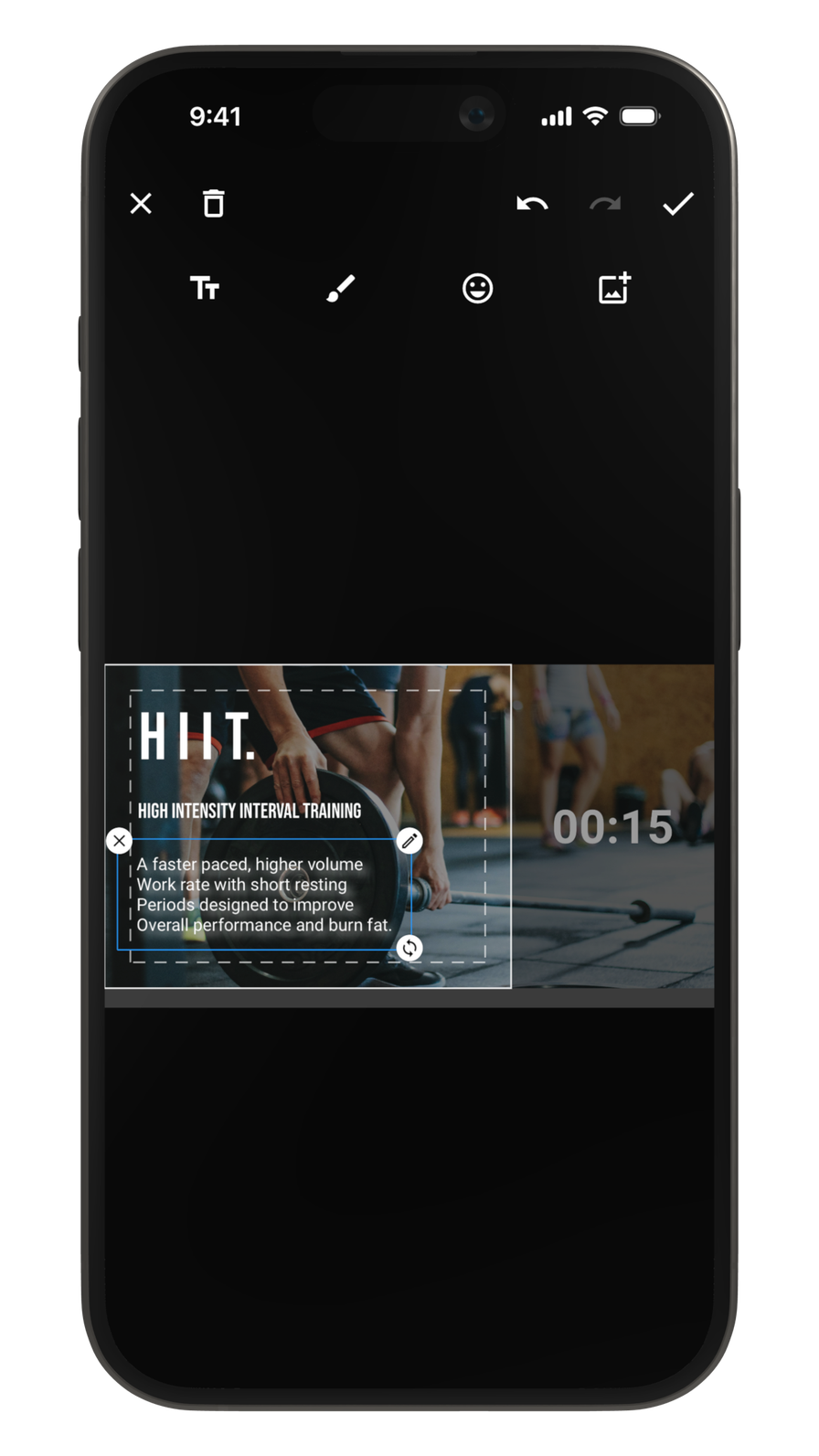
The Canvas Editor lets you place and style text directly over a whiteboard preview.
Simple Text Editor: Fast and Easy
The Simple Text Editor is still the fastest way to add text to a whiteboard module.
It is ideal for quick instructions, session notes, announcements, workout summaries, or any other text that does not need a carefully controlled layout. Type your content, apply basic formatting, save it, and CloudFit handles the display layout for you.
With the Simple Text Editor, you can:
- Add whiteboard text quickly
- Use basic rich text formatting
- Adjust font sizes
- Keep content clean and readable with minimal setup
For many day-to-day updates, this is still the best tool. If you need to change a class note five minutes before members walk in, simple is good.
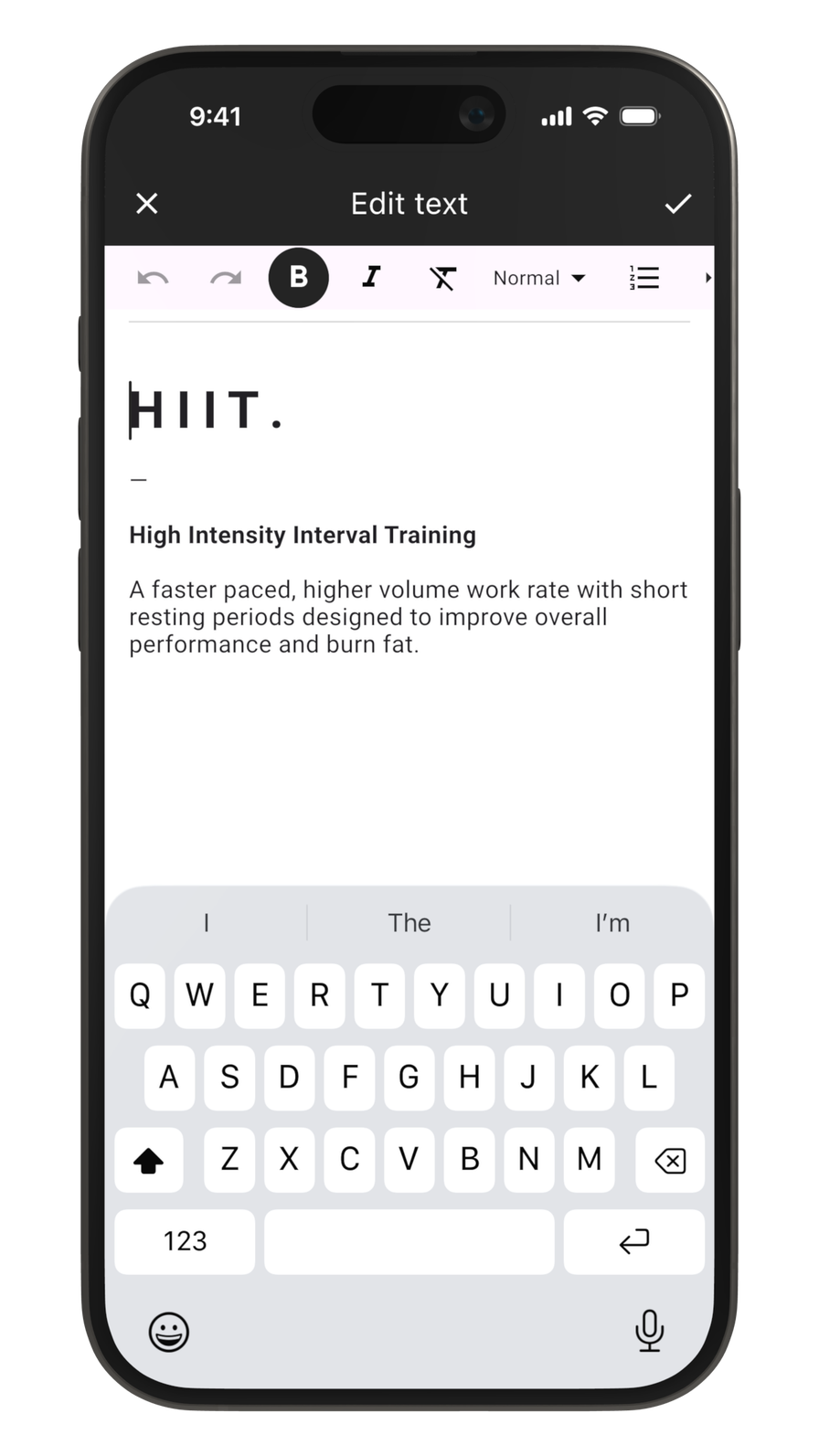
The Simple Text Editor is built for quick, low-friction whiteboard updates.
Canvas Editor: More Control Over Your Digital Whiteboard
The Canvas Editor is a more advanced way to design whiteboard text.
It works more like popular visual design tools such as Canva, where you can place items directly onto a canvas and control how they look. Instead of typing into one standard text area, you can position, resize, rotate and style individual text elements exactly where you want them.
With the Canvas Editor, you can:
- Place text anywhere inside the whiteboard canvas area
- Resize text freely
- Rotate text
- Use different fonts
- Adjust text colours
- Add text backgrounds
- Style different text items independently
- Create more visual layouts for your gym screens
Instead of hoping one block of text lands in the right spot, you can build the whiteboard around the actual screen layout: a large class focus at the top, coaching cues inside the recommended guide area, and supporting notes away from the timer or logo.
You can also add supporting visual elements such as basic shapes, emojis, drawings and images from your CloudFit media library. These can help make a whiteboard more visual, but the main strength of the Canvas Editor is the extra control it gives you over text placement and styling.
Examples of Canvas Whiteboards
The Canvas Editor is useful when the message needs more structure than a normal text block.
For example, you could use it to create:
- A large class theme, such as "HIIT", "Strength", "Upper Body" or "Recovery"
- A short workout explanation with the most important coaching cue highlighted
- A challenge or benchmark note that needs to stand out on the screen
- A branded announcement for a special session, event or member milestone
- A visual whiteboard with text plus a simple shape, emoji, drawing or media-library image
The goal is not to make every whiteboard complicated. Most workout screens should still be easy to read at a glance. The Canvas Editor simply gives you more control when the extra design work is worth it.
Built for Workout Displays, Not Just Editing
The Canvas Editor is designed around how your whiteboard will appear on your CloudFit displays.
When editing, you see a preview of the whiteboard module behind your canvas. The solid boundary shows the area where canvas content can be placed, while the dashed guide shows the recommended safe area for important text.
This matters because gym displays are not empty screens. They may also show timers, logos, counters and other workout information. The guides help you keep important text in the right place instead of accidentally pushing it into the parts of the screen members are already using.
If you are also using background media, CloudFit's video whiteboard support gives you another way to make whiteboard modules feel more dynamic.
Works With Portrait and Landscape Screens
CloudFit supports both portrait and landscape whiteboard canvases.
When you create a new canvas whiteboard, CloudFit chooses the best canvas orientation based on your paid displays. If most of your paid displays are portrait, CloudFit will use a portrait canvas. If most are landscape, CloudFit will use a landscape canvas.
Existing canvas whiteboards keep their current orientation when reopened, so your layout does not unexpectedly change later.
That means you can design for the screens you actually use in your gym, whether you have widescreen TVs, portrait displays, or a mix of both.
Easier on a Bigger Screen
You can use the Canvas Editor from your phone, but it is especially useful on a larger screen such as a laptop, desktop, tablet or iPad.
Because the Canvas Editor gives you more control, there is more to adjust. A bigger screen makes it easier to select text, move items precisely, compare the layout against the display preview and fine-tune the final result.
For quick edits, the Simple Text Editor is still hard to beat. For more designed whiteboards, the Canvas Editor gives you room to work.
Switching to the Canvas Editor
For new whiteboard modules, CloudFit will prompt you to choose which editor you want to use.
For existing whiteboard modules that already use the Simple Text Editor, you will see an option below your whiteboard text that lets you switch to the Canvas Editor.
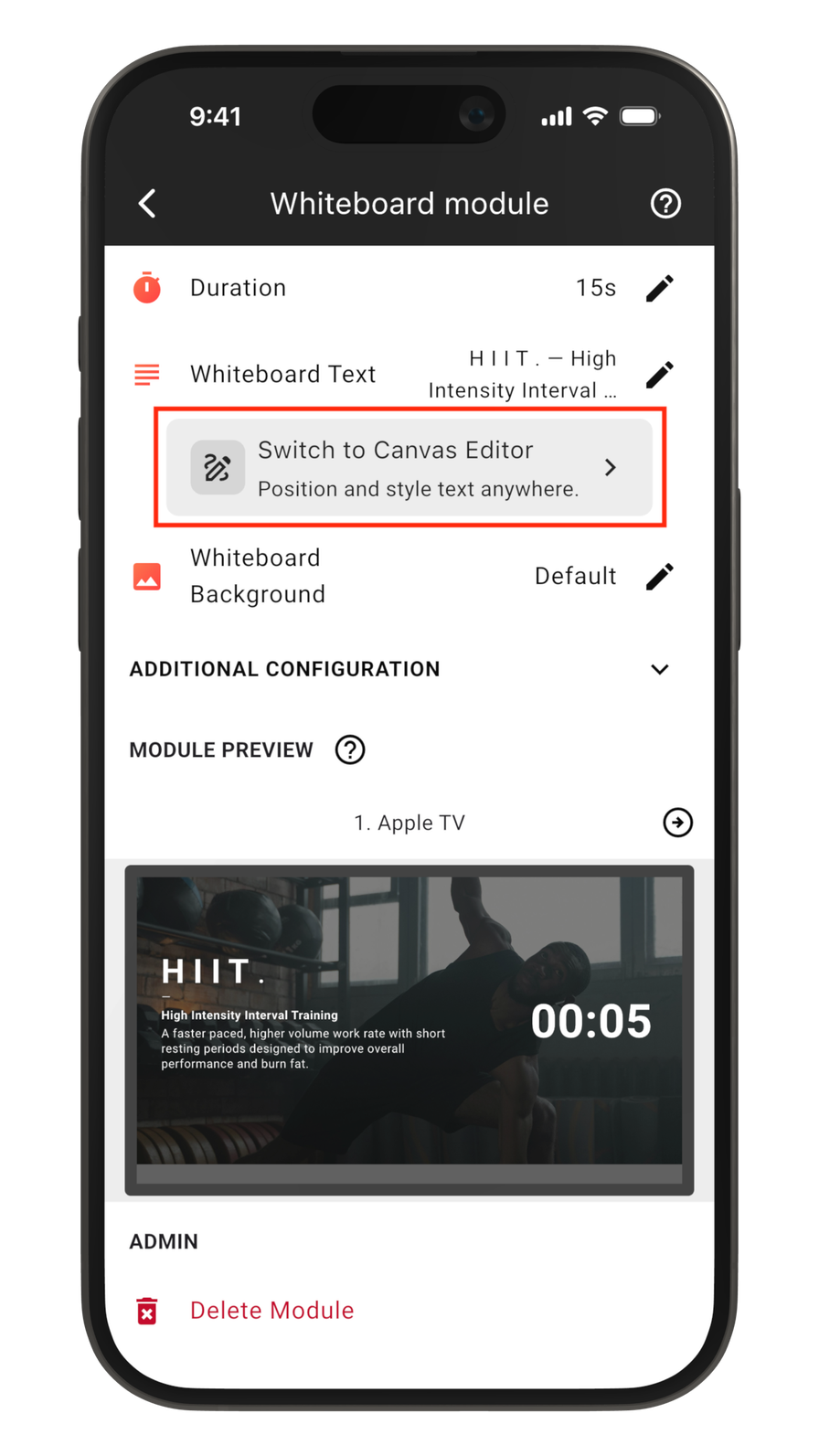
Existing simple text whiteboards can be upgraded to the Canvas Editor when you want more layout control.
Once a whiteboard uses the Canvas Editor, CloudFit will display the canvas version on your screens. Your original simple text is kept as a fallback, and you can clear the canvas version if you want to return to the Simple Text Editor.
Which Editor Should You Use?
Use the Simple Text Editor when you want something quick, clean and easy to update.
Use the Canvas Editor when you want more control over the visual design of the whiteboard.
As a general guide:
- Choose the Simple Text Editor for speed and simplicity
- Choose the Canvas Editor for flexible positioning, custom styling and more polished layouts
The Canvas Editor is more powerful, but it also asks you to make more decisions. If you only need basic text, the Simple Text Editor will usually be faster. If you want your whiteboard to look more designed, the Canvas Editor is the better fit.
Frequently Asked Questions
Can I still use the Simple Text Editor?
Yes. The Simple Text Editor is still available and remains the best option for quick whiteboard updates.
Can I switch from simple text to the Canvas Editor?
Yes. If an existing whiteboard module uses simple text, CloudFit shows an option below the text field that lets you switch to the Canvas Editor.
Can I switch back to the Simple Text Editor later?
Yes. Once a canvas version exists, it becomes the main version shown on your displays. You can clear the canvas version if you want to return to the Simple Text Editor.
Can I place text anywhere on the screen?
The Canvas Editor lets you place text freely inside the whiteboard canvas area. Content cannot be placed outside the canvas boundary, because that space is reserved for other display elements such as timers, logos and counters.
Should I keep important text inside the dashed guide area?
Yes, where possible. The dashed guide shows the recommended area for important content. Keeping key text inside this area helps it look good across different screen sizes and display orientations.
Does the Canvas Editor support portrait and landscape displays?
Yes. CloudFit supports both portrait and landscape canvas whiteboards. New canvas whiteboards choose an orientation based on your paid displays, while existing canvas whiteboards keep the orientation they already use.
Available Now
The Whiteboard Canvas Editor is available now in CloudFit.
For additional info, see our support article: Whiteboard Text: Simple Text Editor vs Canvas Editor.
We're excited to see how gyms, studios and coaches use the Canvas Editor to create clearer, more polished and more engaging whiteboards for their members.
Stay tuned for more updates, and follow us on social media @cloudfit.tv.