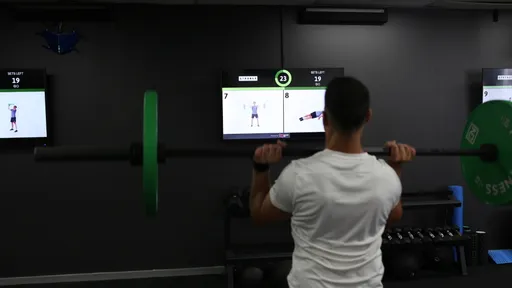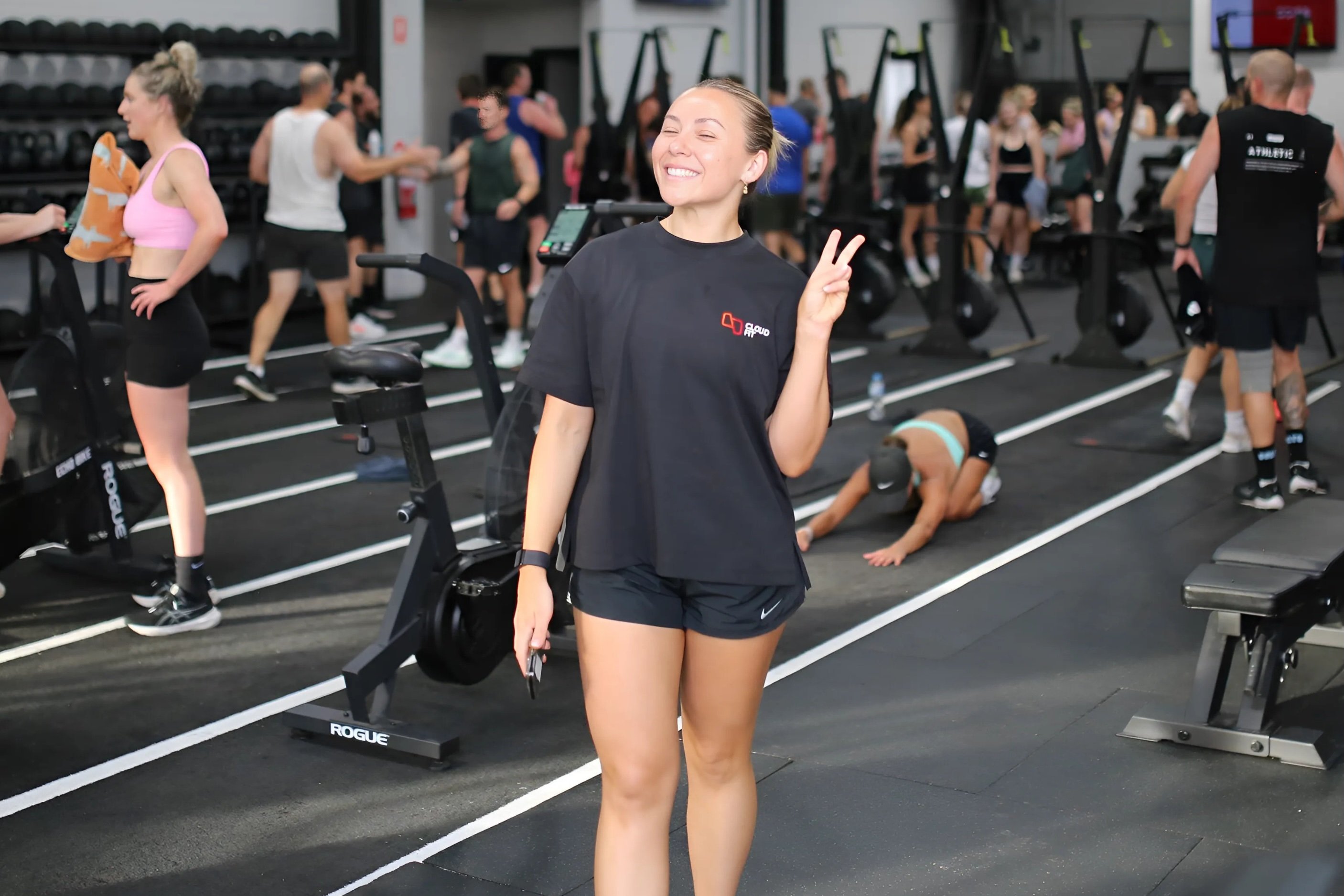
Keep CloudFit TV on your gym screens with Display Lock for Google TV. Give your opening team one less thing to check before the first class.

There’s a lot to do between unlocking the gym and welcoming the first class. While one coach lays out equipment, another is checking members in. If you have three TVs around the room, the last thing either coach needs is a trip from screen to screen to find a remote and open CloudFit.

Display Lock helps keep CloudFit TV on screen on supported Google TV devices. Turn it on once for each dedicated workout screen. After that, if the TV is awake and CloudFit unexpectedly closes or the display lands on the Google TV home screen, Display Lock tries to bring CloudFit back.

Once Display Lock is on, it stays on between classes. The next coach can start their workout as usual, even if someone else opened the gym that morning.
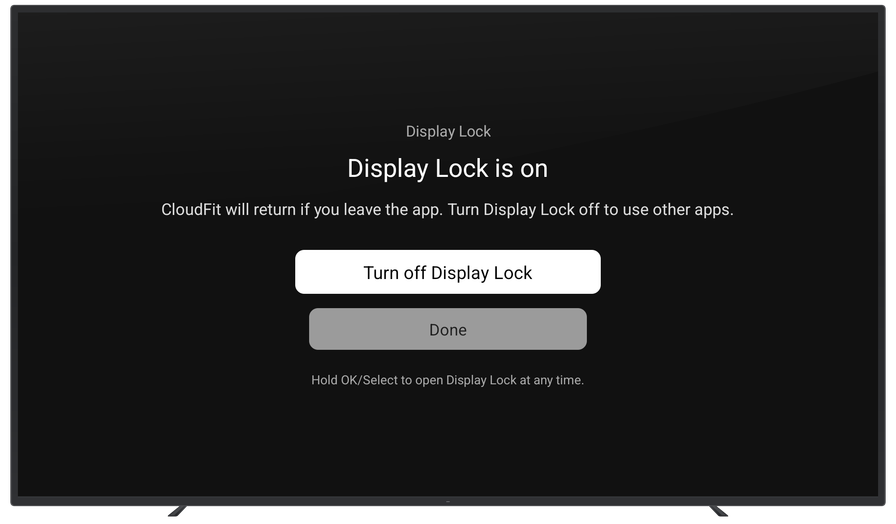
A TV showing “Display Lock is on” in CloudFit, with the option to turn it off.

Supported Devices

Display Lock works on paired Google TV Streamer (4K) and Chromecast with Google TV (4K) devices. When the floor is quiet and no workout is running, follow our Display Lock setup guide to turn it on.

Adam Koch
Adam Koch
Co-Founder & CEO

Adam leads product, technology, and strategy at CloudFit, combining a love of software and fitness to help gyms run better classes.

Related Articles

Boost Gym Engagement: Display Workouts & Timers on Your TVs
Updated

Display Workouts & Timers on Your Gym TVs

Maximize Your Gym Screens: CloudFit Introduces Portrait Mode

CloudFit Introduces Portrait Mode for Gym TVs

Previous & Next
Gym Workout Display Software Compared: CloudFit, Funxtion FXGYM, Gymlete and FitViz Pro

Gym Workout Display Software Compared (2026) | CloudFit