How to Set Up a Gym Screen Display System
A practical, step-by-step guide to launching workout displays in your gym. Covers TVs, wall mounting, power, network, media devices, a controller device for staff, content prep, and a smooth rollout.
What You Need Before You Start: Gym Display Screen Requirements
You do not need a complicated setup to get workout displays running in your gym. For most gyms, a TV, a simple media device, and a reliable internet connection are enough to get started in one class space.
Here is what you'll need to plan for:
- One or more TVs — usually a regular consumer TV, often something you already have on the wall.
- A media device per TV — Apple TV 4K, Google TV Streamer, or Amino devices to drive the screen. iPad is also supported for testing or smaller portable displays.
- A controller device — a smartphone or tablet your coaches use to start, stop, and switch workouts. We recommend a dedicated, shared device that lives on site.
- Reliable network to each TV — Wi-Fi works for most setups, wired ethernet is better when you can run it.
- Power to each TV and media device — usually a single outlet behind the screen.
- Workouts and content built in CloudFit before launch day so the first class is ready to run. Our free resources can help you get started.
The rest of this guide walks through each step in order: what matters, what to avoid, and how to plan it before anything goes on a wall.
Step 1: Choosing the Right TVs
Most gyms can use a regular consumer TV. There's no need for commercial-grade signage hardware to get started. The questions to answer up front are about size, placement, and how many you need.
Size. Choose a TV large enough for members to read the timer and exercise demos from the furthest workout position. For most gym spaces, 55–75 inches works well. If you use multiple TVs, keeping them the same size can make the room look cleaner and more consistent.
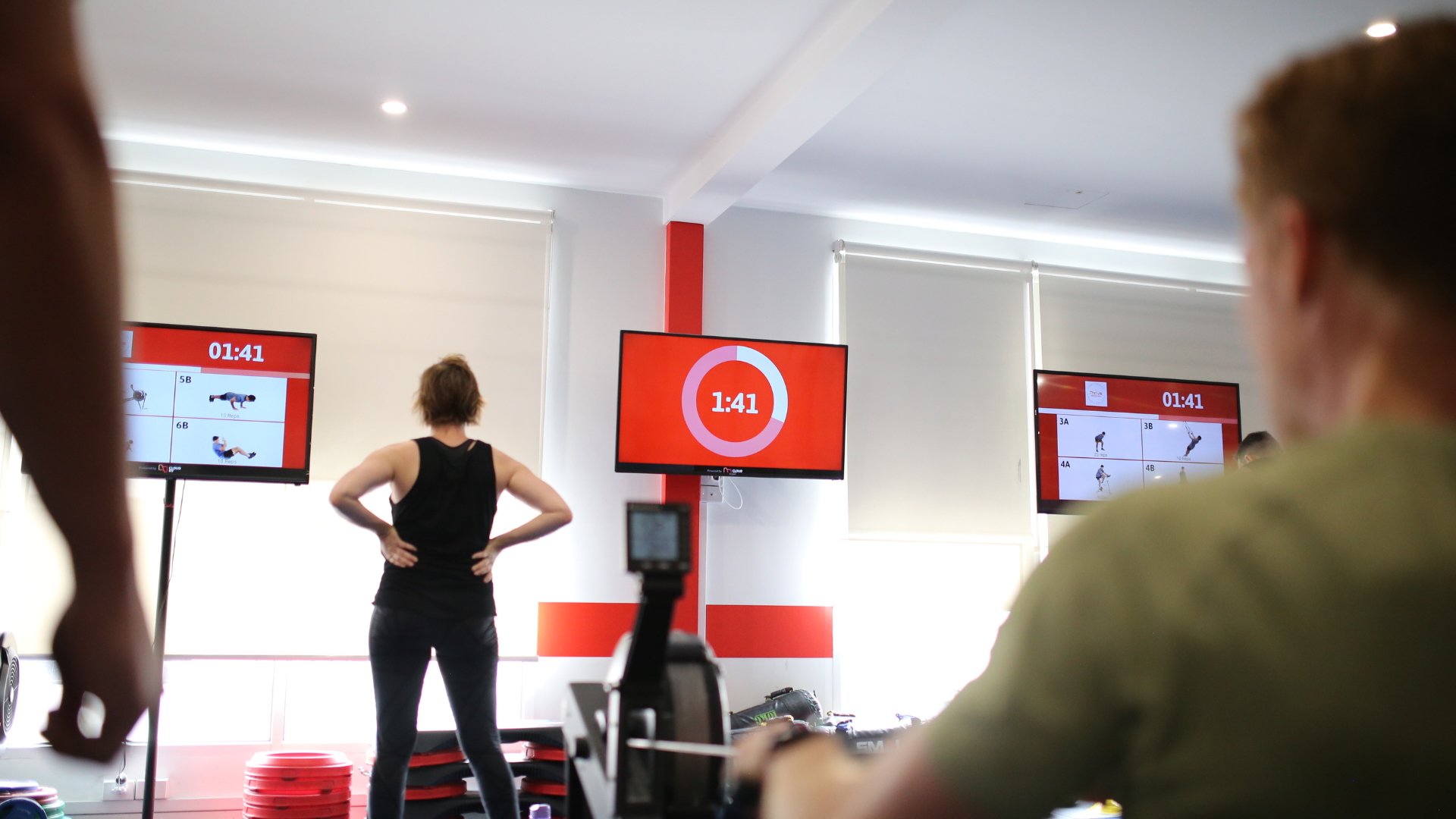
How many screens? A single TV can work in a small room, but most gyms get more out of 3 or more screens, and larger spaces often run 5 or more. The reason is flexibility:
- Dedicated timer screen. Members can glance at the timer from anywhere on the floor without searching for it.
- Demo screens. Two or three screens showing exercise demos let members at every station see what to do without crowding one TV.
- Parallel content. Different parts of the gym can run different exercises, stations, or even different classes side by side without competing for the same screen.
A rough sizing guide:
- Small studios or single class spaces: 1–2 screens is usually plenty.
- Mid-sized gyms: 3–5 screens covers a timer, demos, and some flexibility.
- Large or multi-zone gyms: 5+ screens to cover multiple zones cleanly.
Whatever you start with, you can add more screens later. Each new TV just needs its own media device. And you can use TVs you already own; CloudFit pairs with a media device that plugs into a regular HDMI input.
Step 2: Wall Mounting — Position, Height, and Sight Lines
How a screen is mounted has more impact on the member experience than which TV you buy. A well-placed screen is glanceable from every workout position. A badly-placed one is invisible the moment someone bends over.
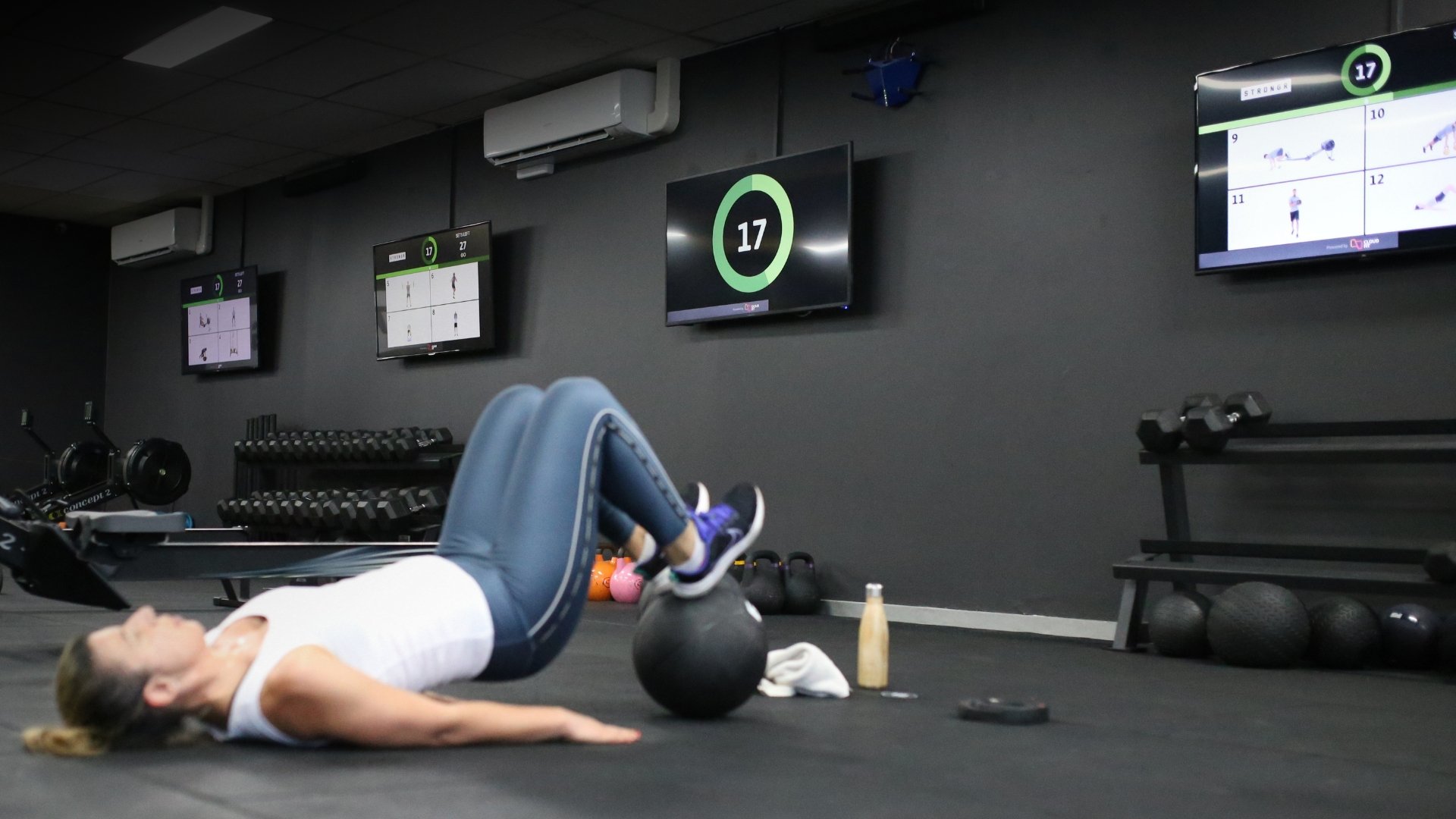
Plan mounting around the standing eye-line of members from the furthest part of the workout area. A few practical rules:
- Height: screens are usually best mounted with the center roughly at standing eye height for the typical viewing distance. High enough to clear equipment, low enough that members aren't craning.
- Sight lines: stand in each main workout position before mounting. Can you read the screen from there? Is anything in the way?
- Mounts: use a sturdy high quality wall mount that handles the TV's weight with margin. Tilt mounts help when screens sit higher than ideal.
- Multi-screen: stagger screens so members at any station can always see at least one.
When in doubt, mock it up. Hold a piece of cardboard the size of the TV against the wall before drilling. For wall-mounted screens, use a qualified installer to make sure the TV is mounted safely and securely.
Step 3: Power and Cabling
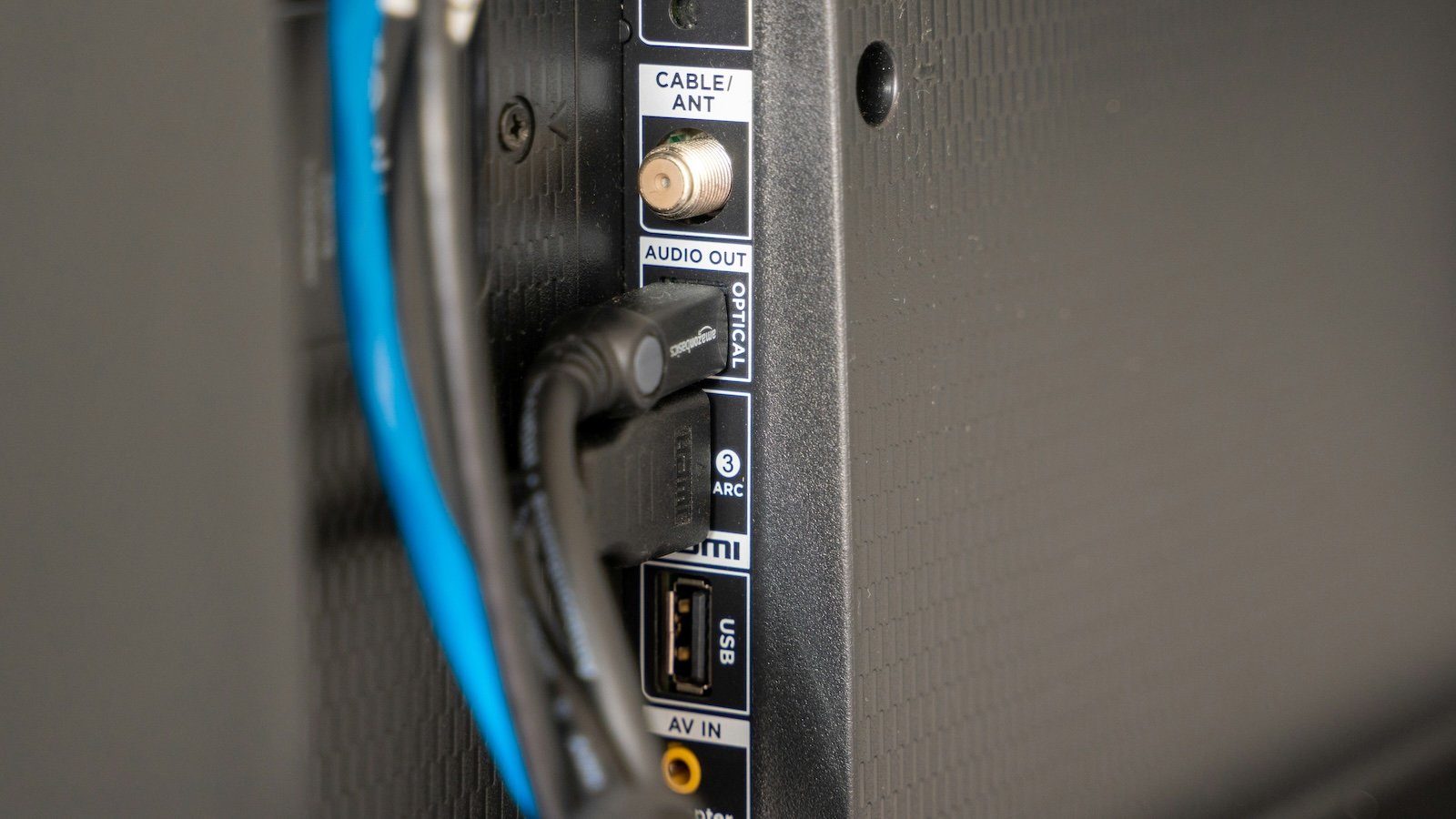
Plan power before you mount anything. Both the TV and the media device need an outlet, ideally hidden behind the screen.
Practical things to think through:
- Outlets behind the screen. Most cleanly handled by an electrician adding a flush outlet behind the TV before mounting. Cheaper alternative: a surface-mount cable raceway from the screen down to an existing outlet.
- Media device location. Apple TV, Google TV Streamer, and Amino media players can sit on top of the TV, behind it, or velcro'd to the back of the bracket. Either way, the media device needs power too.
- Cable management. Loose HDMI and power cables in a busy gym get caught on equipment. Use raceway, in-wall conduit, or at minimum a cable cover.
- Bring an electrician for any in-wall work or new circuits. Don't run extension cords as a permanent solution.
None of this is dramatic, but it's the difference between a clean, professional install and a tangle of cables behind the rack.
Step 4: Gym Wi-Fi Setup for the TV Display — and When to Wire It
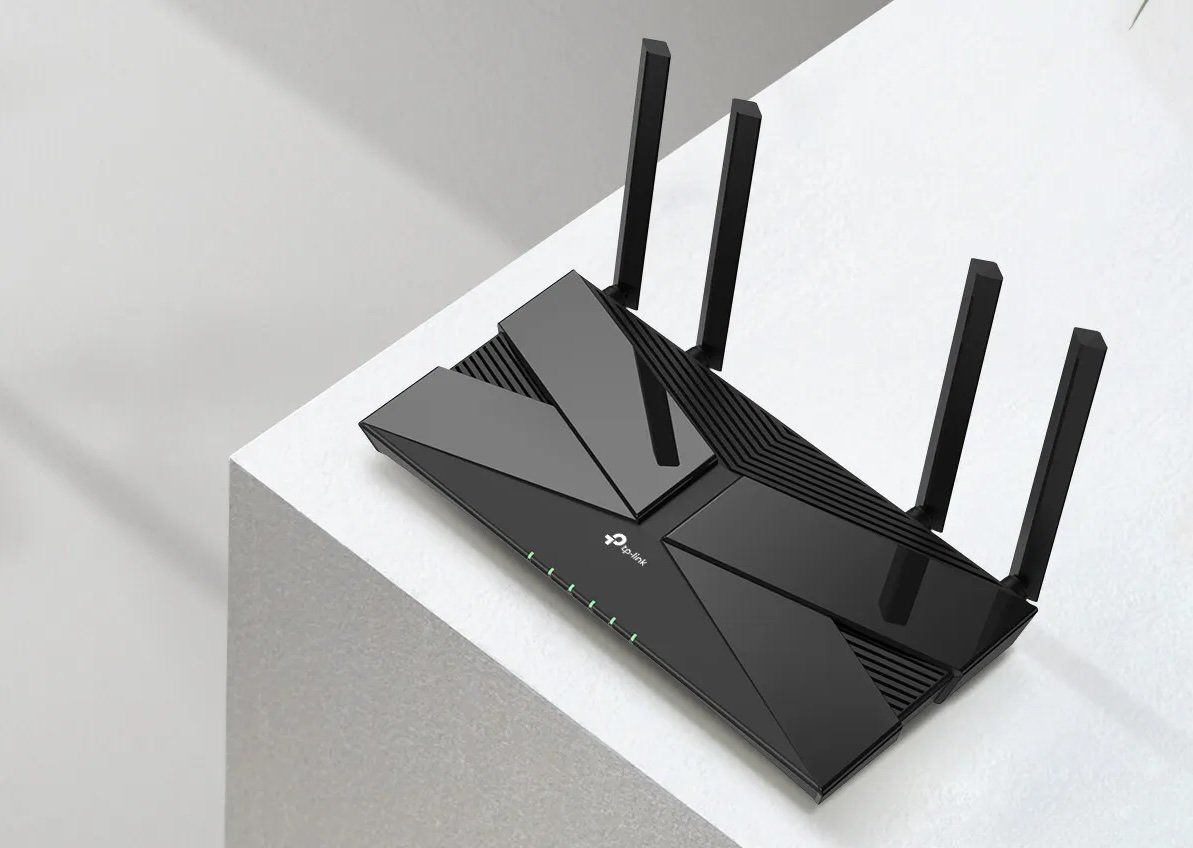
Workout displays only work when they can talk to the controller and the cloud. The good news: requirements are modest. The thing to watch is reliability, not raw speed.
Wi-Fi works for most gyms. A standard business or home-grade router with reasonable coverage will handle a small number of displays without trouble.
Wired ethernet is better when you can run it. It's more reliable, removes Wi-Fi congestion as a variable, and is worth the extra cost in:
- Larger gyms where Wi-Fi gets weak in corners
- Multi-screen setups where every device fighting for the same Wi-Fi adds up
- Sites with a lot of competing equipment on the same band
Practical tips:
- Don't put displays on a guest network. Members streaming Spotify and TikTok will choke it. Use a dedicated network or VLAN.
- If a display drops connection mid-class, the workout keeps running on the screen, but you'll want it back online before the next session. A reliable network avoids that scramble.
Step 5: Choosing a Media Device
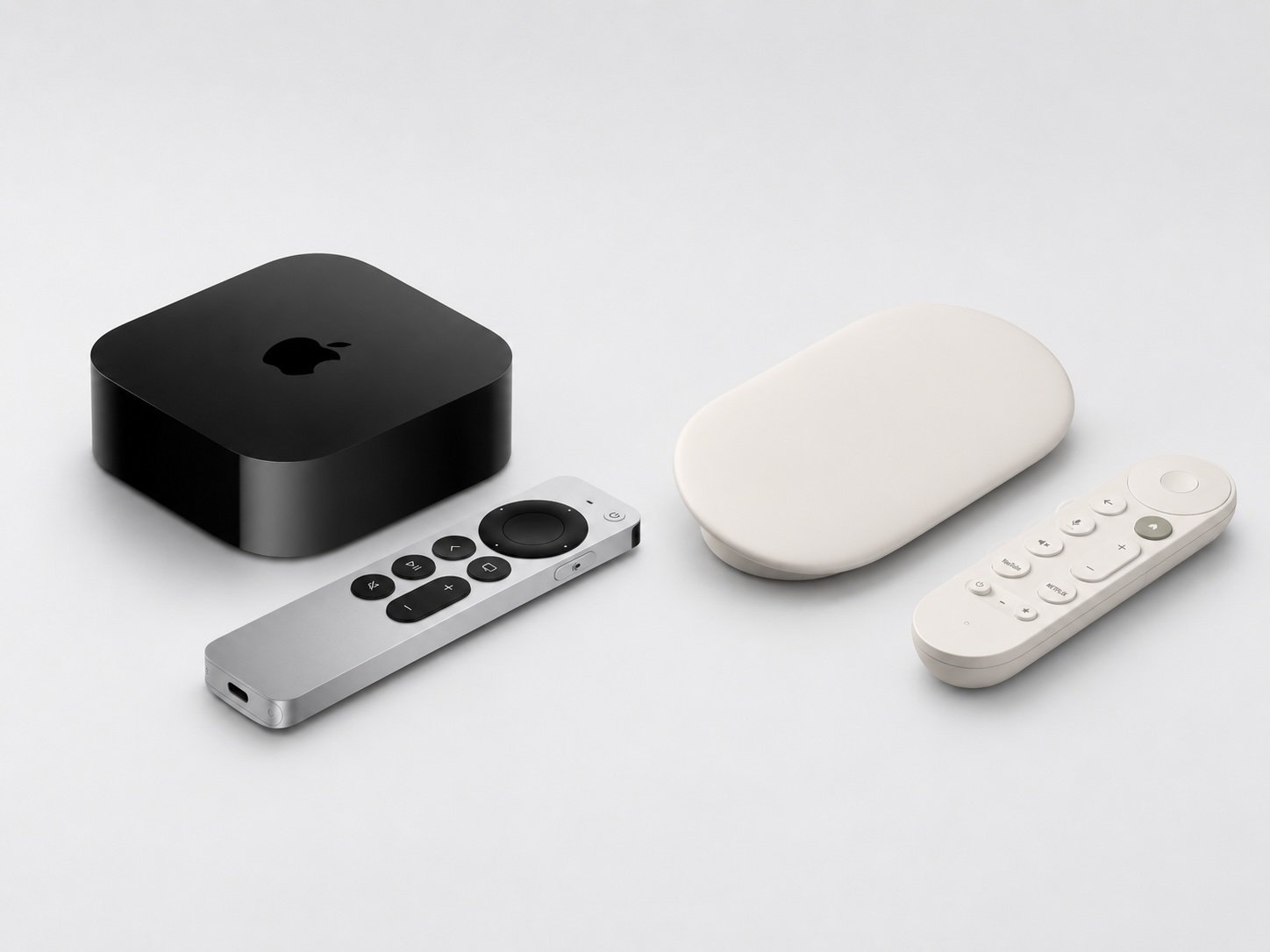
Each TV needs a small media device to actually run the CloudFit display. There are several good options:
- Apple TV: the most popular choice. Reliable, fast, easy to set up, and the same hardware as a typical home streaming box. Around US$129–$149 depending on storage and ethernet.
- Google TV Streamer: a strong alternative if your team is more familiar with Android. Around US$100.
- Amino devices: the enterprise option for permanent installs, multi-location rollouts, 24/7 gyms, hotel gyms, and screens that need to stay locked to CloudFit.
- iPad: useful as a starter setup, for testing CloudFit before mounting any TVs, or for smaller portable displays. You can run CloudFit on an iPad in front of the room or on a stand to validate the experience first.
Best practice is to standardize on one media device type across your screens. Mixing device families can work, but keeping them consistent makes setup, support, spares, and replacements easier. Whatever you choose, every TV needs its own media device. They do not share.
A common rollout path is to start with an iPad to test the system, then move to Apple TV, Google TV Streamer, or Amino devices once you're ready to mount permanent screens. If you already have an Apple TV or Google TV Streamer at home, you can use it to test CloudFit before buying dedicated gym hardware. For a side-by-side view, see the CloudFit compatible hardware comparison.
Step 6: Choosing a Controller Device for Your Coaches
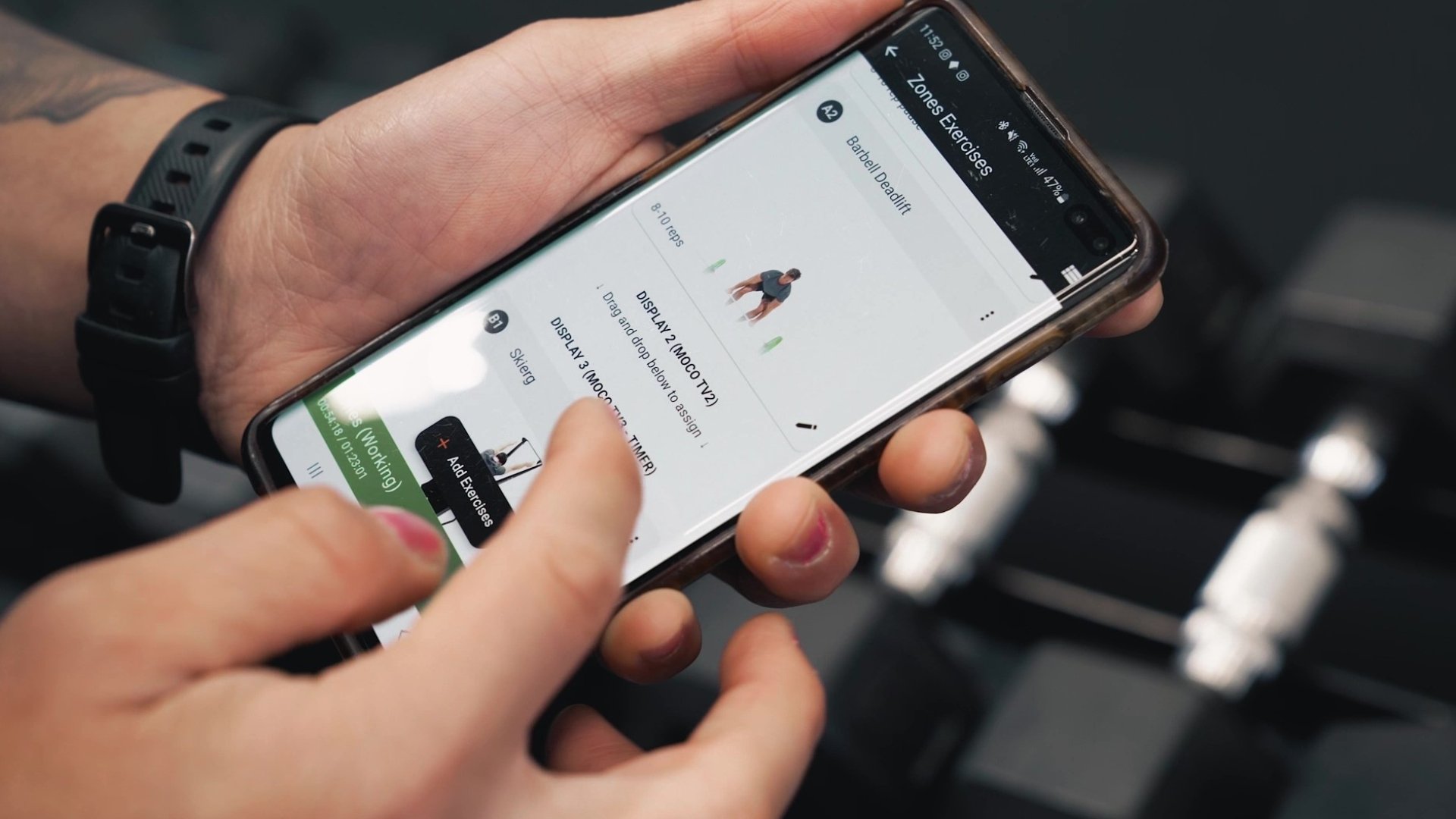
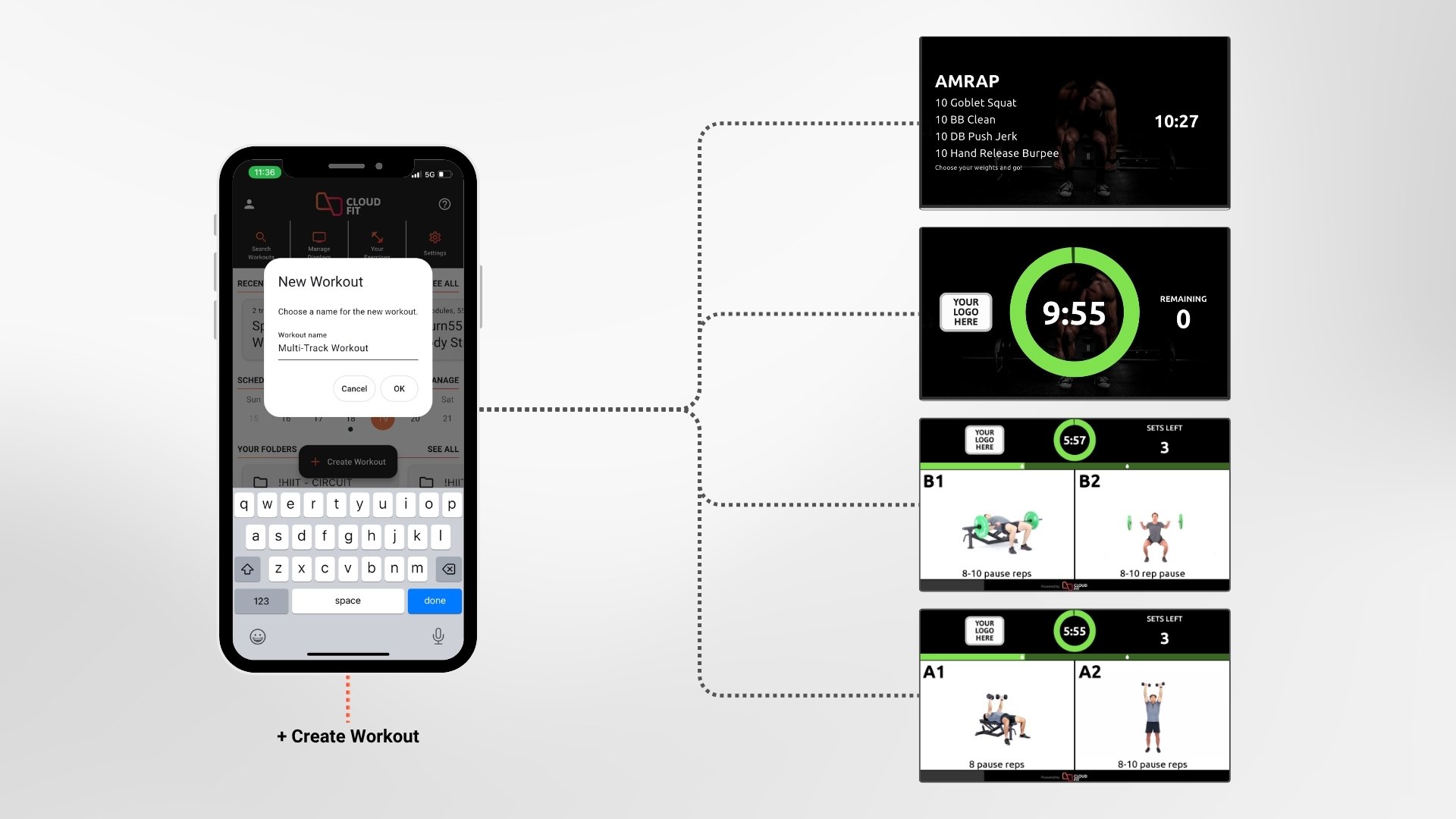
The controller is the device coaches use to start, stop, and change workouts on the screens. It runs the CloudFit controller app and can be a phone, tablet, or laptop.
Recommended: a dedicated, shared device that lives at the gym. Usually a smartphone or tablet kept at the front desk or in the coach's area, used by every coach on shift.
If coaches prefer to use their own phones or tablets, CloudFit can also support invited staff access with permissions, so the account owner can control what each person is allowed to create, edit, or manage.
Why a shared device works better than "every coach uses their own phone":
- Always logged in and ready. No fumbling with passwords at the start of class.
- Same workflow for every coach. Easier to train new staff and faster handover between sessions.
- No "I left my phone in the car". The controller is where the workouts are. It needs to be there.
- Personal phones stay personal. Coaches don't have to bring their own device into the workout flow, and you don't get a coach's notifications popping up mid-class.
An older-generation tablet works perfectly for this and keeps the cost low. Coaches can still use their own phones in a pinch, but the dedicated device should be the default.
Once your controller is sorted, how workout display systems work walks through what actually happens when a coach presses play.
Step 7: Content Preparation
Hardware is the easy part. The thing that makes the screens worth turning on is the content: your workouts, your demos, your branding.
Use the built-in library. CloudFit ships with a library of 4,000+ exercise videos you can pull straight into workouts. For most gyms this covers the bulk of what you need.
Film your own movement videos. A phone is enough. Filming your own demos puts your coaches and your style on the screens, which makes the experience feel branded rather than generic. Most operators do this for their signature movements and use the library for everything else.
Build out your first workouts in advance. Before launch day, build the workouts you'll run in the first week or two. That removes pressure on the day and lets coaches see the experience end-to-end before they're delivering it live.
Set up branding. Add your logo, brand colors, and any custom screens. This is usually a one-time setup that pays back on every class.
Schedule. Workouts can be scheduled weeks or months in advance, so a session can start automatically at the right time even if no coach has touched the controller yet.
Audio (optional). Most gyms run music separately from the workout displays. If you do want screen audio, plan speakers as part of the install. Most TVs have an audio out you can wire into your existing system.
Need help with your content? Start with hundreds of sample workout templates, or get a hand programming your own workouts, building out your exercise library, and setting up branding. Talk to the team and we'll help you get launch-ready.
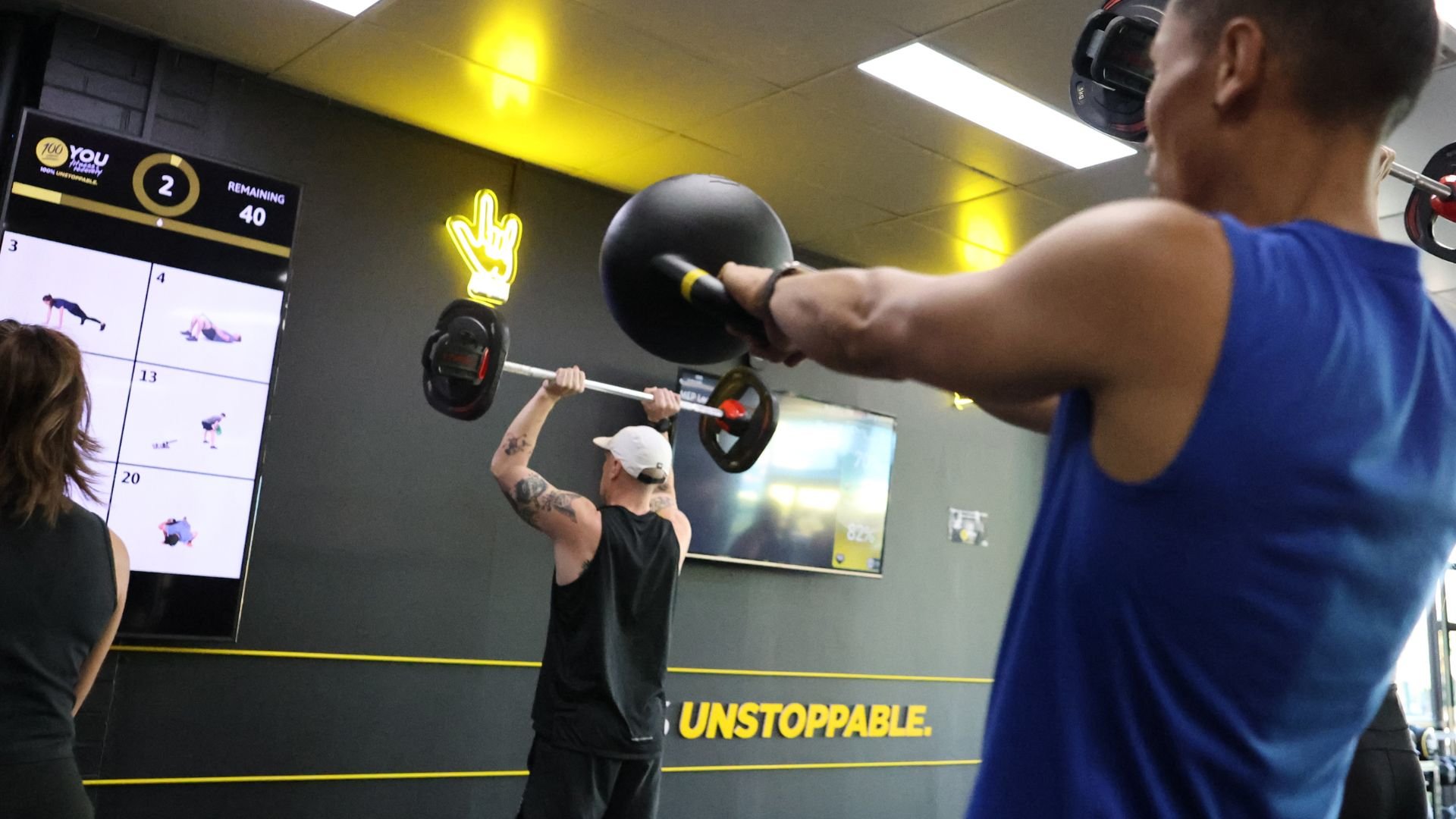
Step 8: Rollout Best Practices
A workout display system can change how coaches run classes. A cold rollout with no preparation tends to meet resistance from coaches; a careful start with the right people goes much smoother.
Trial CloudFit on an iPad first. Before you commit to mounting TVs, run CloudFit on an iPad to get familiar with the system. Build a workout, run through it yourself (without members) to feel the timing and flow, and learn the controller app. This is the cheapest way to validate that CloudFit fits how your gym runs sessions before any hardware decisions.
Train one or two champion coaches. Once the system feels right, pick the coaches most likely to embrace it, get them comfortable with the controller device, and let them run the first sessions. Their feedback shapes the rollout.
Soft-launch with one class type. Start with the format that benefits most from on-screen timing and demos: usually circuits, HIIT, or station-based workouts. Once it's smooth, expand to other formats.
Plan a first-week checklist:
- First class delivered with the screen on and a coach comfortable using it
- Members give early feedback (formal or informal)
- Any sight-line or network issues addressed before week two
- Other coaches shadow at least one class before they deliver one
Then expand. Add screens to other zones, train the rest of the team, and roll the system into more class formats.
A few patterns come up over and over with first-time gym screen installs. None of them are hard to avoid if you plan for them.
With only one or two screens in a larger space, members at the back struggle to see what's going on, and you don't have the flexibility to split the workout into a timer plus demos plus station content.
A dedicated timer plus a couple of demo screens covers most layouts. For multi-zone gyms or stations, plan one screen per zone so every member has a clear view of relevant content.
Mount goes up, then nobody knows where the cables run. Cue extension cords and visible HDMI runs.
Talk to an electrician about an outlet behind each screen. If that's not possible, plan raceway or conduit before drilling.
Displays drop offline mid-class because members are streaming on the same network.
Put displays on a separate network or VLAN. Wire them in if you can, especially with multiple screens.
Every coach uses their own phone, the controller workflow is different every class, and new hires take weeks to get comfortable.
Pick one or two coaches to lead the rollout. Set up a shared phone or tablet that lives at the gym so every coach starts class the same way.
What It Costs to Start
Most gyms underestimate how cheap it is to get a workout display system running. The costs break down into a few predictable buckets:
- TVs: often something you already have on the wall. If not, a regular consumer 55–75" TV is usually fine. Budget per your room.
- Apple TV 4K: around US$129–$149 per screen. One per TV.
- Google TV Streamer: around US$100 per screen. One per TV.
- Amino devices: from around US$350 per screen for managed enterprise deployments. One per TV.
- Controller device: an existing or older-generation phone or tablet works. A dedicated device is optional but recommended.
- CloudFit subscription: see pricing plans for current rates per region.
A single-screen setup with one media device and a CloudFit subscription is well within reach for most independent gyms. Multi-screen setups scale linearly: each new screen needs its own media device, and the rest of the cost stays the same.
Optional one-off costs: wall mounts, an electrician for clean power, and any cable raceway or conduit work.
Worth budgeting for: TVs and a media device per screen are a one-time hardware spend that affects every class going forward. Unlike a new treadmill or rack, screens don't take up floor space, and the cost per session works out lower than most operators expect once you spread it across the full life of the install.
How to Get Help
The fastest way to plan a setup that fits your specific gym is to walk through it with us. Talk to the team for tailored hardware and rollout guidance, or get started when you're ready to move.
For more context before you commit, see what a workout display system is, how workout display systems work, and the benefits of workout display systems. For format-specific setups, see functional fitness and HIIT display setups and strength and conditioning screen setup, or browse the full CloudFit features list.