A pro-quality exercise demonstration video for a gym comes down to four ingredients: even lighting with no harsh shadows, a clean and uncluttered background, a stable camera angle on a tripod, and a loopable clip under five seconds long. You can produce videos that look great on your gym's TVs with nothing more than a modern smartphone and a couple of hundred dollars in basic gear. This guide walks through exactly how, step by step, and shows you how to get the finished videos onto your screens with CloudFit.
Quick checklist before you hit record
- Camera: smartphone (1080p, 60fps) or mirrorless, on a tripod
- Lighting: one or two soft light sources, no overhead fluorescents fighting your shot
- Background: clean, branded, free of clutter and reflective mirrors
- Model: wearing colours that contrast with the background
- Framing: locked, with the full movement in frame from start to finish
- Loop: start and end positions identical, take 1.5–4 seconds
- Plan: 3–5 takes per exercise, simple naming convention for each file
Why custom exercise videos matter for your gym
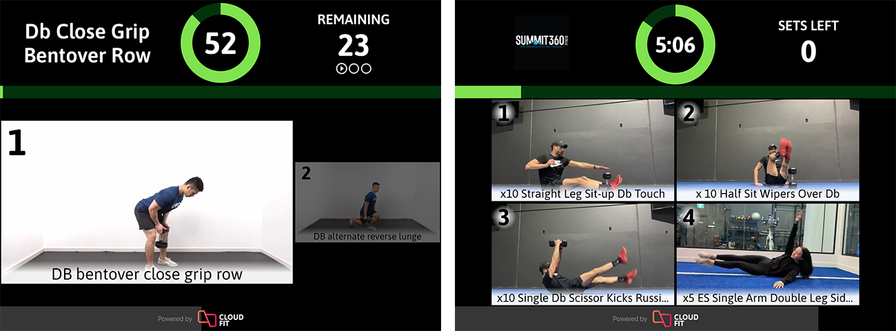
The CloudFit built-in exercise library has thousands of professionally filmed exercise videos covering everything from standard bodyweight movements to powerlifting, stretching, and core work. We add to it every few months so the day-to-day job of running great classes stays as simple as possible.
But the built-in library will not cover every studio. Maybe you have a signature movement that no one else programs. Maybe you want your own coaches up on the TV screens so members see familiar faces leading every demo. Maybe a piece of branded equipment is central to your style of training and you want it featured.
That is why we built the ability to record and upload your own custom exercise videos directly from a smartphone, and why studios on CloudFit have already uploaded thousands of their own clips. Once a video is in CloudFit, it can be used in your workout displays and even in your digital whiteboard backgrounds.
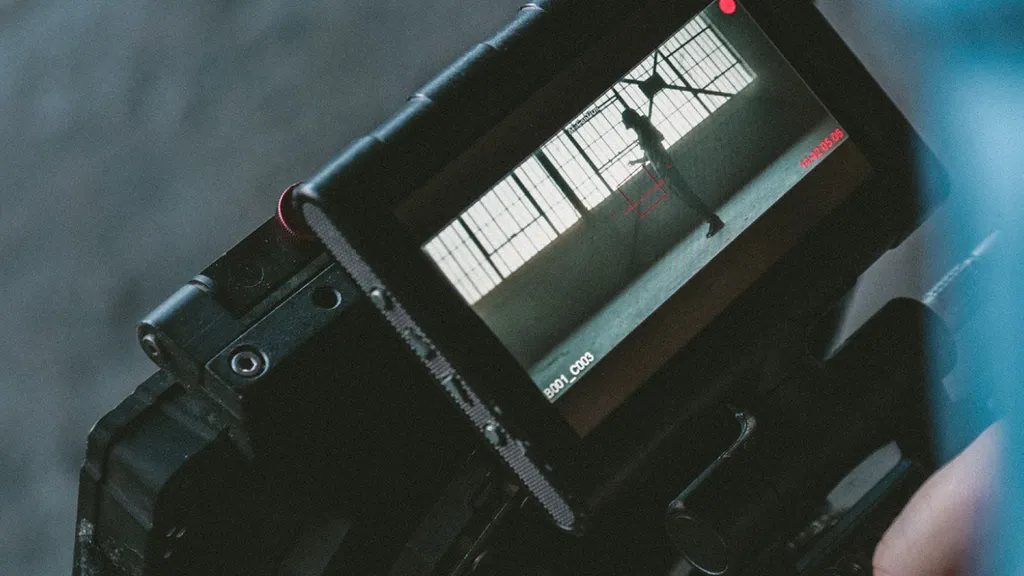
As studios have uploaded more and more clips, clear best practices have emerged around what makes a video look professional on screen. The rest of this guide is what we have learned.
What lighting do you need to film a professional exercise video?
We cannot stress this enough: lighting matters more than your camera. A $1,500 mirrorless body shot in a dim corner will look worse than an iPhone shot in good light.
For most gyms, a basic two-light setup is plenty. A pair of LED panels or softboxes placed at roughly 45 degrees in front of the model — one on each side — gives you bright, even lighting and kills the harsh shadows that make amateur footage look amateur. You can pick up a usable kit on Amazon for $50–$200.
A single ring light works for tight, head-and-shoulders demos but tends to flatten full-body movement; reach for panels or softboxes when the whole body is in frame.
The most common gym-specific challenge is overhead fluorescent or high-bay lighting. It is harsh, often the wrong colour temperature, and casts hot patches on the floor. Where you can, turn it off in the corner you are filming and rely on your own lights. If you cannot, position your model so the overhead light falls behind them rather than directly above. Natural light from a large window is excellent; just film at the same time of day for every video so the look stays consistent across your library.
What's the best background for an exercise video?
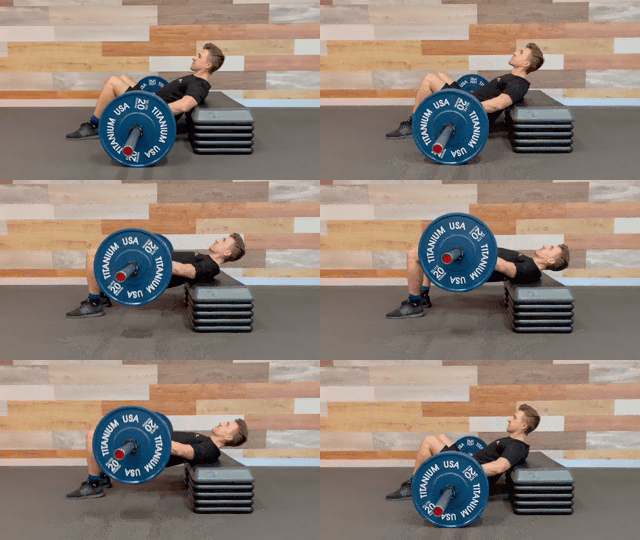
Simple, branded, and uncluttered. The single biggest mistake we see is filming against a busy gym wall full of equipment, posters, and signage. The eye does not know where to land and the movement gets lost.
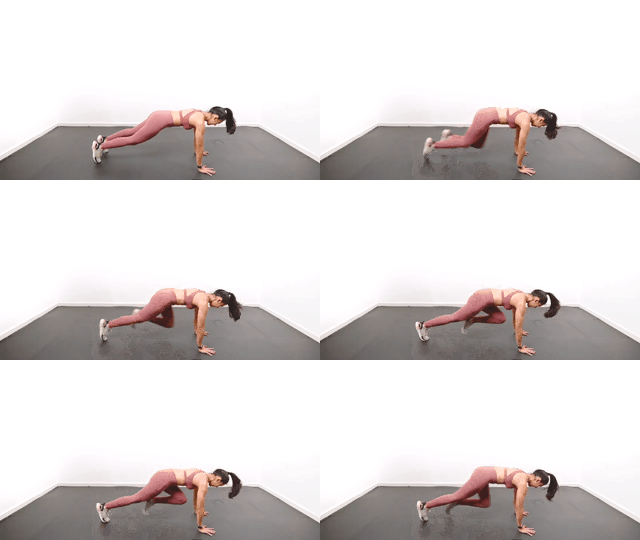
It might seem like a pure white background is the only "professional" option because that is what the CloudFit built-in library uses. It is not. A pure white look requires a cyclorama wall, careful three-point lighting, and a colour-correction pass in post-production. The cost and time involved are significant. Unless you are committed to that investment, avoid it — clean simple backgrounds look just as polished on a gym TV.
What works in practice:
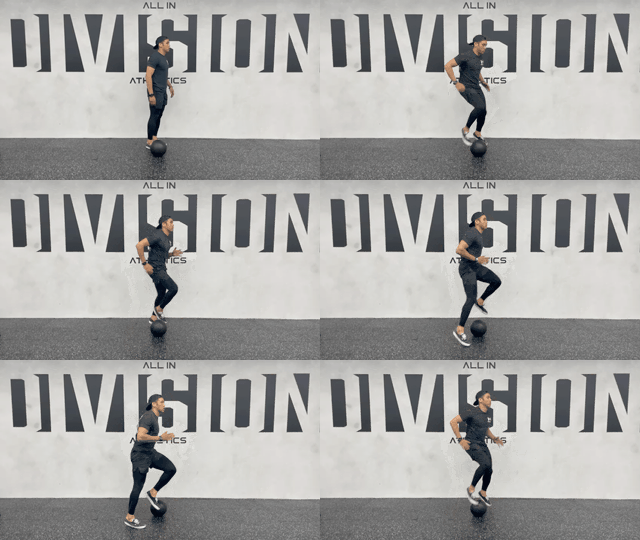
- A bare painted wall in your studio's brand colour
- A clean corner with the equipment cleared and any mirrors angled or covered to prevent reflections
- A pull-up bar or rack with the rest of the floor tidied
- A roll of seamless paper backdrop ($30–$60) hung behind the model
Whatever you choose, use the same setup for every exercise so your library feels cohesive. Watch out for windows behind the model (silhouettes), mirrors (which catch the camera), and anything moving in the background.
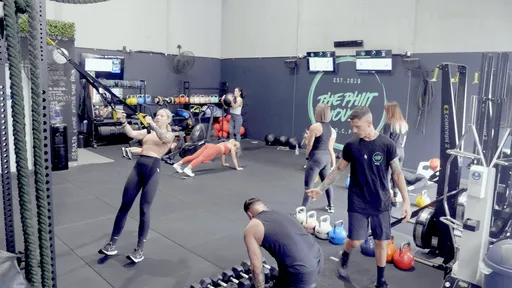
Here are a few examples from CloudFit customers who have nailed this:
What camera and tripod setup should you use?
The honest answer for most gyms is: your phone. A modern iPhone or recent Android shoots beautifully sharp 1080p or 4K video, and that is what almost every CloudFit customer uses to build out their custom library. Picking up a mirrorless camera is only worth it once you are committed to producing dozens of clips and want the extra control over depth of field and colour.
A tripod is non-negotiable. Hand-held footage looks cheap even when it is technically stable, and worse, the framing drifts between shots so your library ends up looking inconsistent. A $25 phone tripod with a quick-release mount is enough. If you can, mark the tripod position on the floor with a piece of tape so every exercise is filmed from the same angle and distance.
Set the tripod at roughly chest height for full-body movements, parallel to the model, and step back far enough that you have a small margin of headroom and footroom in the frame. Lock the framing, then do not touch it again until you finish that exercise.
How long should an exercise demonstration video be?
Most exercise videos in CloudFit run between 1.5 and 4 seconds. The reason is simple: on screen, the video loops continuously while members glance at it for a second or two. They need to read the movement quickly, recognise what they are doing, and look away. Anything longer than five seconds wastes screen time; anything shorter than one rep is confusing.
The single most important rule is that the model must start and finish the rep in exactly the same position. A push-up should start at the top, descend, and end at the top again — same pose, same angle. When the video loops, the seam between the last frame and the first frame becomes invisible and the movement appears continuous.
A few practical tips:
- Have the model run through the rep 3–5 times in a single take before you stop recording. You will pick the cleanest rep and trim around it.
- Cue the model to pause for a beat in the start position before moving. That gives you a clean cut point.
- Avoid mid-rep facial expressions or chatter that will look strange on a silent loop.
If a movement is too slow to fit in five seconds (a heavy deadlift, for example), it is fine to film at 60fps and lightly speed up the footage in post — the result still reads correctly to a member glancing at the screen.
Camera settings: resolution, frame rate, and aspect ratio
For a typical gym TV display, 1080p at 60fps is the sweet spot. 4K is fine but produces files three to four times larger for almost no visible benefit on a 55-inch screen viewed from across a gym floor. 60fps gives you smoother motion and the option to slow footage down cleanly if you want to show technique in detail.
The other decision is aspect ratio. Standard horizontal TVs use 16:9, so film landscape. If your gym uses vertical screens — increasingly common in boutique studios with portrait-oriented displays — film a separate take in 9:16 portrait orientation, framed for that screen shape. Cropping a horizontal video to fit a portrait screen rarely looks good.
Turn off any flashy effects in your phone's camera app — Cinematic mode, action filters, beauty smoothing. They look strange when the footage is running in a loop next to other clips.
How to upload your videos to CloudFit
Getting your finished videos onto your screens is the easy part. Open the CloudFit mobile app, head to your custom exercise library, tap upload, and pick the clip from your camera roll. The video gets processed, transcoded, and made available on every CloudFit display in your gym within a minute or two.
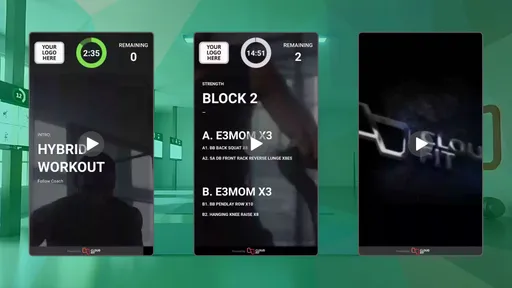
If you want to use videos as the background of a digital whiteboard rather than as an exercise demo, the new Media Library is what you want. Upload a video once and it becomes available for use across any Whiteboard Module. Built-in video and image content is also included so you can get started without uploading anything.
If you have not added custom videos to your CloudFit setup yet, start your free trial and you can have your first custom clip on screen in under five minutes.
When should you hire a professional videographer?
For most gyms, the smartphone-and-tripod approach is more than enough. You should consider hiring a pro when:
- You are filming a content library of 50+ videos at once and want every shot identical
- You specifically need a pure white cyclorama-wall look (typically for a brand launch)
- You are producing hero/marketing video, not in-class exercise demos
- Your studio's brand position depends on a level of polish DIY cannot deliver
A fitness-specialist videographer in most major cities will charge $1,000–$3,000 for a half-day shoot covering 30–50 exercises. Look for someone with a fitness reel — generic event videographers often light bodies in motion poorly. If you are not sure whether you have outgrown the smartphone approach, talk to our team and we can give you an honest read based on what other studios at your stage are doing.
Frequently asked questions
How long should a gym exercise demo video be? Between 1.5 and 4 seconds for most movements. On a workout display, the clip loops continuously while members glance at it briefly, so it needs to read instantly. Make sure the start and end positions are identical so the loop is seamless.
Do I need a professional camera to film exercise videos? No. A modern smartphone shoots 1080p or 4K video that looks excellent on a gym TV. Almost every CloudFit customer films with an iPhone or Android. A mirrorless camera is only worth the investment if you are producing a large content library or want fine control over depth of field.
What's the best lighting for filming exercise videos in a gym? Two soft light sources at 45 degrees in front of the model — LED panels or softboxes — give bright, even lighting with no harsh shadows. A basic kit costs $50–$200. Avoid relying on overhead fluorescent or high-bay lighting; it casts hot patches and the wrong colour temperature.
How do I make an exercise video loop seamlessly? Have the model start and finish the rep in exactly the same position, with the same pose and angle. Pause for a beat at the start position before moving, run through the rep 3–5 times in one take, and trim the cleanest rep so the first and last frame match. The loop seam then becomes invisible.
Can I upload my own custom exercise videos to CloudFit? Yes. CloudFit lets you record and upload custom exercise videos directly from your smartphone, and they are available across every CloudFit display in your gym within minutes. You can also use uploaded videos as backgrounds for digital whiteboards via the new Media Library.
That is everything we have learned from watching thousands of customer-uploaded clips. Even with a smartphone, a tripod, and a little planning, you can build a library of exercise videos that look every bit as professional as the ones in our built-in library — and far more on-brand for your studio.
To start uploading your own custom videos, try CloudFit free today, or talk to our team if you would like advice on building a video library for your gym.