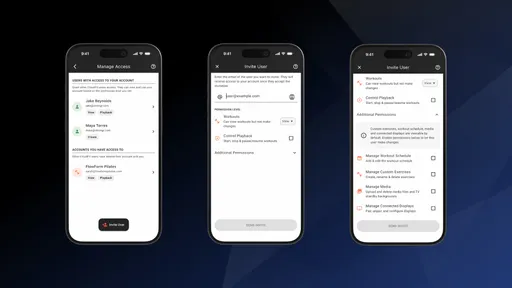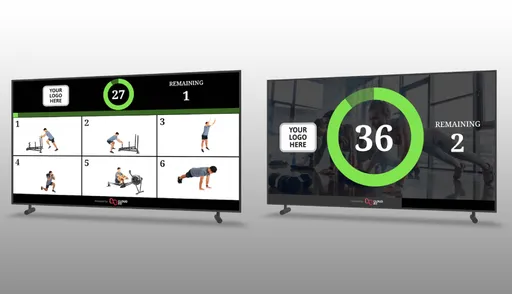
You can now connect ChatGPT or Claude directly to CloudFit to create workouts, plan your class timetable and manage exercises and media. Describe what you need in a conversation, refine the details and ask your assistant to save the result in your account.
That means less copying from a chat into your workout builder, and more time working on the session itself.
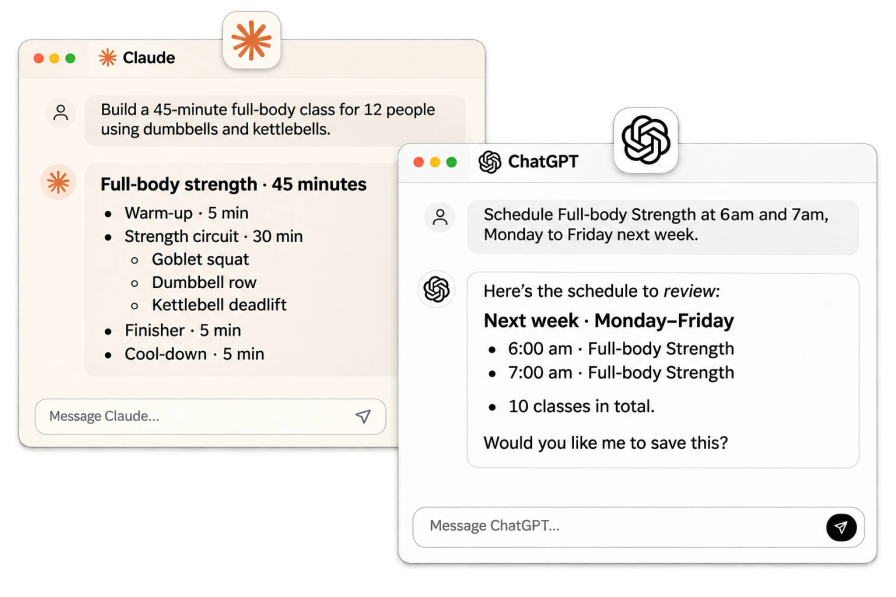
Illustrative examples of workout creation in Claude and class scheduling in ChatGPT.
What is MCP? A simple connection to CloudFit
MCP stands for Model Context Protocol. It's the connection that lets your AI assistant look up information and make changes in CloudFit, using the access you allow.
You describe what you want in everyday language, then work through the details with your assistant. It can use your CloudFit content alongside information from other apps you've connected to help with larger programming projects and everyday jobs.
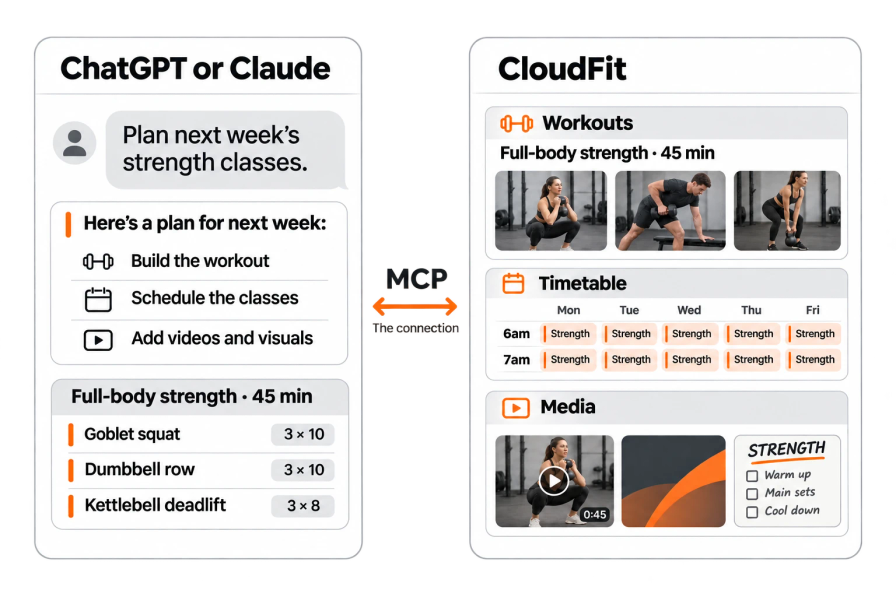
For example:
Create a series of 10 strength workouts. Ask your assistant to plan a progressive training block using your equipment, keep each session within your class length and build the workouts in CloudFit.
Set up your schedule from another connected app. If your assistant can read a timetable in your gym management software, calendar or spreadsheet, ask it to use those class times to set up your CloudFit schedule.
Add 20 exercise videos with consistent names. Ask your assistant to import the videos and match the naming style in your existing exercise library.
There's no coding to learn. You keep working in ChatGPT or Claude, with CloudFit connected.
Build a workout from your class brief
Start with the same brief you might give another coach:
“Create a 45-minute full-body class for 12 people using dumbbells and kettlebells. Include a warm-up and cooldown. Show me the plan before saving it to CloudFit.”
Your connected assistant can search the CloudFit exercise library and build the workout with exercises and timings. You can refine the idea in the conversation: change the format, swap a movement or adjust a rest period.
Once you're happy with the plan, ask it to save the workout. It's then in CloudFit, ready for you to check and run on your gym TVs.
Adapt an existing CloudFit workout
You don't have to start with a new workout. Ask your assistant to find a saved session and make a copy for a different class.
For example:
“Copy Friday's strength workout into a new session. Make it 30 minutes and replace the rowing exercises because our rowers are being serviced.”
Or:
“Show me the timings in Monday's circuit. What would change if we made each work interval 45 seconds?”
This is useful for the adjustments that happen every week: a shorter class, a change of equipment or a new version of a favourite session. Your CloudFit workout builder is still there whenever you want to make changes in the app.
Schedule your classes for the week
The connection also works with your CloudFit schedule. Ask your assistant to add a workout to the timetable, move a class or copy a week's schedule.
“Copy this week's timetable to next week. Move Wednesday's 6 am class to 6:30 am, Melbourne time, and show me the changes before saving.”
Including your location and time zone helps your assistant plan the right classes at the right times.
Find exercises and manage your media
Your own videos and branded visuals can be part of the conversation too.
Upload exercise videos, one at a time or in bulk
You can add a video of your coach demonstrating a new movement or bring across a whole collection. Your assistant can open an upload page where you can select or drop multiple videos together, then help you name and organise the exercises for your workouts.
“Help me bring our exercise video library into CloudFit so we can use our own coaches on screen.”
Create backgrounds and whiteboards with AI
If your AI app supports creating images, ask it to design a branded background or a workout whiteboard using your colours, logo and coaching notes. Review the design, then ask your assistant to upload it to CloudFit and add it to your workout.
“Create a background in our black and orange colours for Saturday Strength, plus a whiteboard with the warm-up, main workout and cooldown. Show me the designs before adding them to CloudFit.”
Your AI app's image tools create the visuals; the CloudFit connection lets your assistant bring them into your account. If the assistant can't send a file directly, it can give you an upload link instead. You can still ask it to find saved exercises, organise workouts and reuse media already in your library.
Choose what your AI assistant can access
When you connect an AI app, you sign in to CloudFit and choose which locations it can access. You can allow it to view information only, or let it make changes within your existing CloudFit permissions.
Keep your coaching judgement in the process. Ask for a preview, check exercises and timings, and make sure the workout suits your members and equipment before you run it. You can disconnect the app in Settings → AI & API Access in CloudFit.
Connect ChatGPT or Claude to CloudFit
AI connections are included with CloudFit Business. Open the AI connection guide and follow the steps for Claude or ChatGPT. You'll use your own AI account; available connection options depend on that app's plan and workspace settings. For a short introduction, read Connect ChatGPT or Claude to CloudFit in our Help Centre.
You can also keep using CloudFit's built-in AI Exercise Suggestions to find movements while you work in the app. Our CloudFit AI page explains both options.
For businesses with a developer or technical partner, we're also introducing the CloudFit API for connecting your own software to supported CloudFit features. The reference and guides are at api.cloudfit.tv.
For your first conversation, pick one real task: adapt tomorrow's class, build a new session or plan next week's timetable. Tell your assistant what you need, review its work and save when you're ready.